




Best CPU for Video Editing in 2026: How Many Cores Do You Need?
The short answer: 8 cores is the realistic floor for video editing, 12 to 16 cores is the sweet spot for 4K, and past 16 cores you are paying for performance that editing and colour work will not use. For most editors that means an Intel Core Ultra 7 265K or a Ryzen 9 9950X. Kevin builds these machines by hand in Wolverhampton and tests them with real timelines. Browse the video editing workstations or have one built to your exact spec as a custom PC.
Trying to pick a processor for editing and not sure where the money should go? Call Kevin on 01902 714533. He’ll ask what you shoot, what you cut in, and how long your projects run, then give you a straight answer.
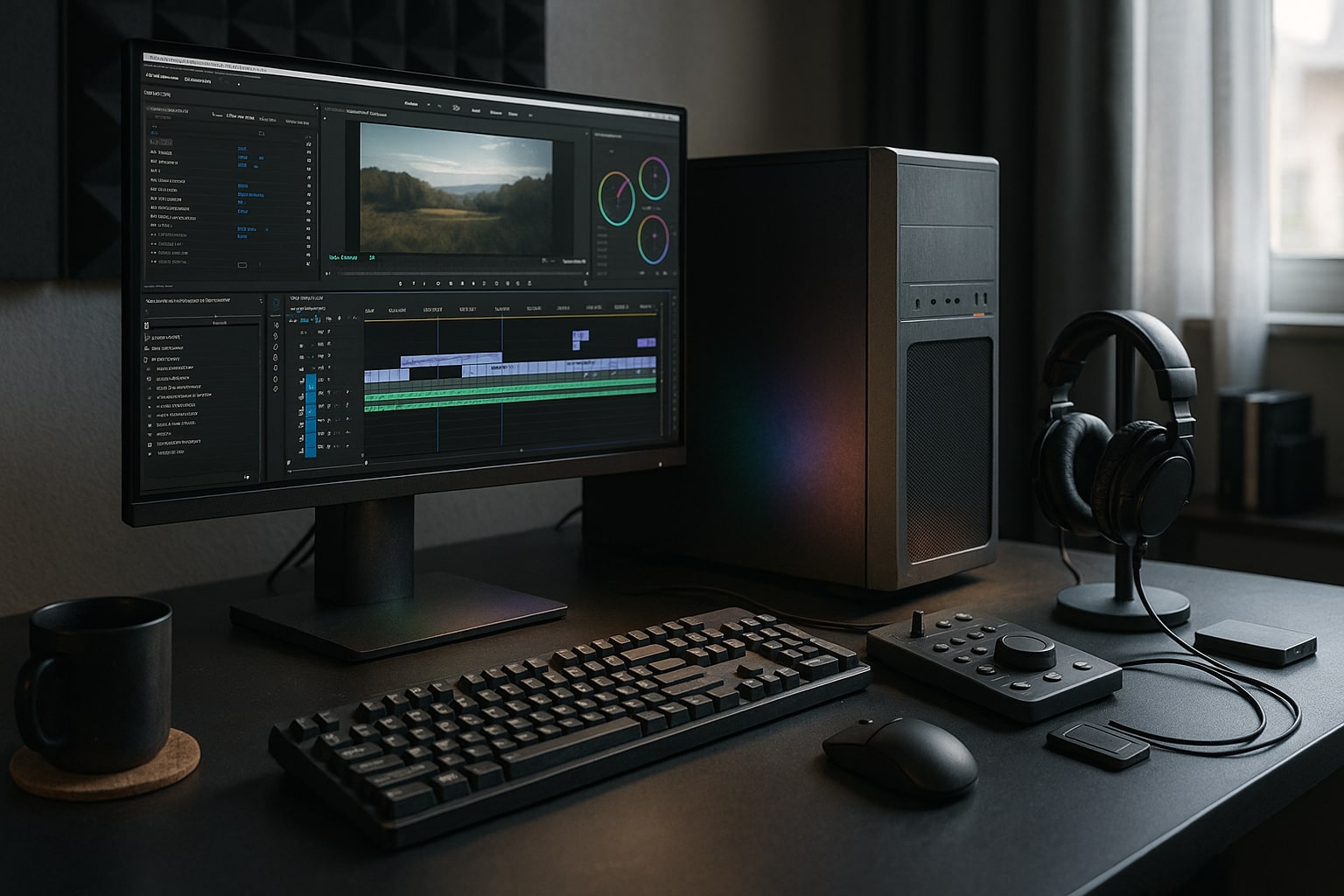
Which CPU Feature Would Provide the Best Performance for Editing?
Four things decide how a processor feels in an editing timeline. Core count is only one of them, and it is not always the one that matters most.
Core Count
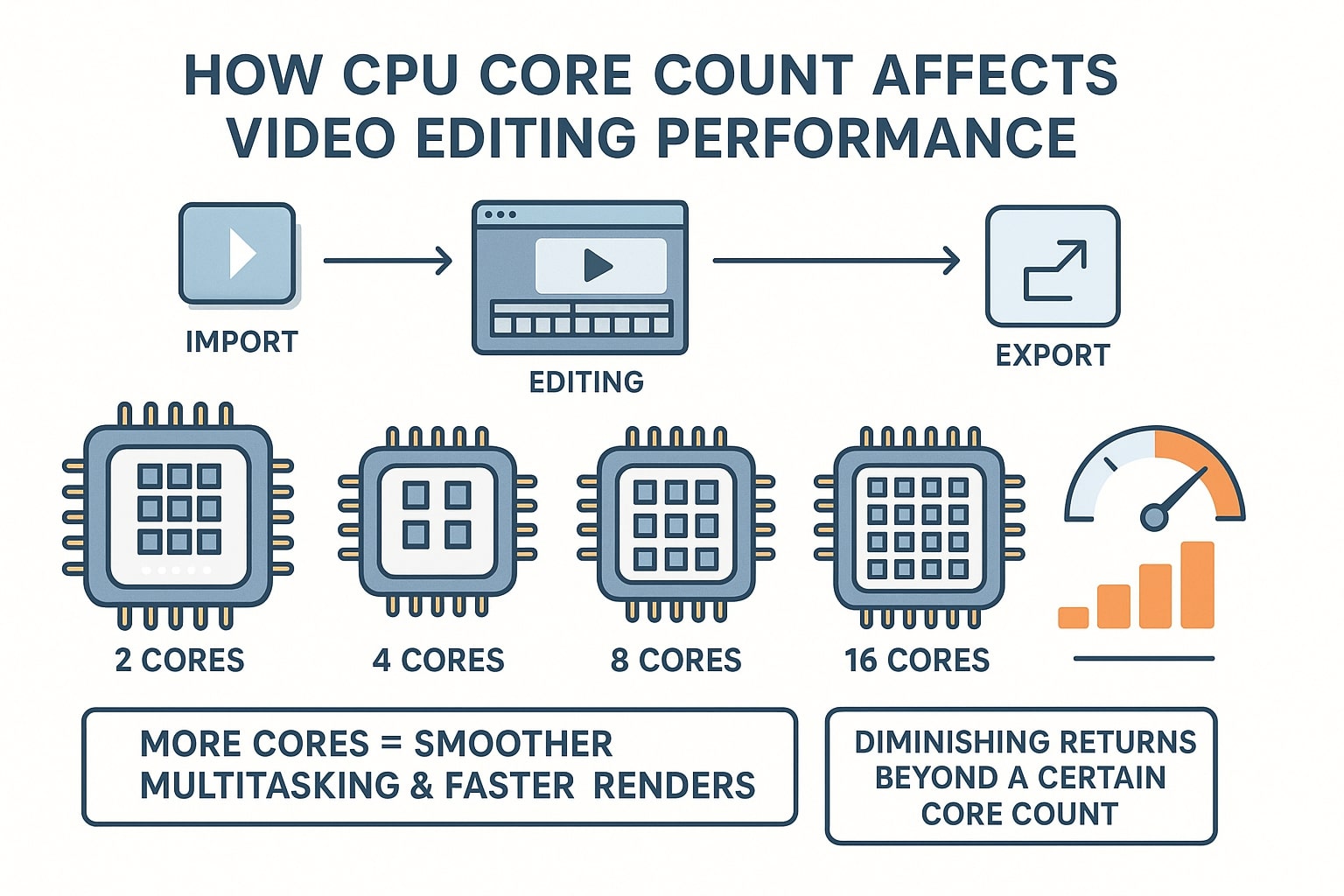
Rendering, exporting and background caching split across every core you have, so core count sets your export throughput. It is the single biggest factor in how long a render takes. What it does not do is make scrubbing feel snappier: that job belongs to clock speed. Below 8 cores you will feel the machine struggle; above 16 the gains flatten out for most editing work.
Clock Speed (GHz)
Is GHz enough on its own? No, but it decides how the machine feels. Timeline playback, scrubbing, opening projects and most of what Photoshop and Illustrator do run on one or two cores, so a high boost clock does that work. A modern processor at 5.5 GHz and above will feel responsive even on modest core counts.
Hardware Encoders
The part almost every buying guide misses. Intel’s Quick Sync block and Nvidia’s NVENC on your RTX card encode and decode H.264 and H.265 in dedicated silicon rather than on general cores. For codec-heavy work this shortens exports far more than adding four more cores would. It is why an Intel Core Ultra chip can beat a higher-core AMD part on export times.
Cache and Memory Bandwidth
High-resolution projects move enormous amounts of data. Cache and DDR5 memory bandwidth keep the cores fed; starve them and a 16-core processor sits idle waiting on RAM. This is why we never sell a high core count with thin memory: the balance is what delivers real performance and reliability, not the headline number.
How Many Cores for 4K Video Editing, and Every Other Tier
The core count we build for each kind of work, with the processor that fits it.
Every Ginger6 workstation is hand-built and stress-tested for 24 hours in Wolverhampton before it ships. Call Kevin on 01902 714533 to talk through which row you sit in, or read our companion guide on optimal PC builds for 4K editing.
Is 8 Core Enough, and Is Dual Core Good for Video Editing?
Dual core is not good for video editing, not in 2026, not for any resolution. A 2-core processor cannot decode footage, run the interface and cache in the background at the same time, so the timeline stutters before you have added a single effect. We do not build editing machines below 6 cores.
Is an 8 core CPU good for video editing? Yes. 8 cores is a genuinely comfortable place to start. It handles 1080p work easily and copes with straightforward 4K, especially when the GPU is doing the effects and a hardware encoder is doing the export. It is the point at which the machine stops being the bottleneck for most creators.
The interesting part is where the returns stop. Most editorial and colour workflows scale well up to about 16 cores and little beyond. Fusion, After Effects and 3D rendering are the exceptions, and those keep using everything you give them. If you are an editor building a workstation for rendering high-resolution video projects, 16 cores is the number to aim at, and the money after that is better spent elsewhere.
-
Threadripper is not the answer for editing. In independent video editing testing the 64-core Threadripper 9980X scores lower than the 24-core 9960X and 32-core 9970X. It is a genuine tool for 3D and simulation studios, but for editing and colour it costs several times more for performance you will not see. We do not build Threadripper editing machines, and we would tell you the same on the phone.
-
X3D chips are a gaming feature, not an editing one. 3D V-Cache helps games, not renders. If your machine is dual-purpose, see the section below; if it is for editing, a standard Ryzen 9 or Core Ultra is the better buy.
-
Cores without RAM are wasted. Pair 16 cores with 16GB and the system pages to disk constantly. See our guide on how much RAM you need for video editing.
-
Your codec changes the answer. Long-GOP H.265 leans on hardware decode; ProRes and BRAW lean on cores and storage. Our guide to how codecs affect editing performance covers it.
The Best Processors for Video Editing and Rendering in 2026
You asked us to list some high-performance processors rather than talk in generalities, so here they are: the three CPUs we fit in creative machines this year, and who each one is for. The best processor for content creation is rarely the most expensive one; it is the one matched to the kind of video creation you do.
What are the latest Intel processors that would best suit a content creator’s needs for video editing and graphic design? Intel’s current desktop family is Core Ultra on the LGA 1851 platform: the Core Ultra 5, 7 and 9. The two we fit in nearly every creative machine we build are the Core Ultra 7 265K and the Core Ultra 9 285K, and if you take one recommendation away from this page, take that one. The old i5, i7 and i9 names ended with the 14th generation, and the Core Ultra 9 285K is the direct successor to the i9 14900K. On the AMD side, Zen 5 Ryzen 9000 on AM5 is current, and we reach for it when the job is rendering rather than cutting. Both platforms use DDR5. Anything newer is still a way off, so a machine bought now is on the current generation rather than the tail of the last one. Call Kevin on 01902 714533 and he’ll tell you which of the two suits your software.
Intel Core Ultra: The Codec Specialist
Best when your footage is H.264 or H.265 and your priority is fast exports and smooth playback.
- 20 cores / boost to 5.5 GHz
- Quick Sync hardware encode and decode
- Current LGA 1851 / DDR5 platform
- In the G6 Quartz and G6 Onyx
- Best for: 4K editing, graphic design, photo work
- 24 cores (8P + 16E) / boost to 5.7 GHz
- Quick Sync hardware encode and decode
- Current LGA 1851 / DDR5 platform
- In the G6 Tungsten
- Best for: BRAW and 4K RAW, multi-app workflows
AMD Ryzen 9: The Render Workhorse
Best when raw multi-core throughput is what you are buying: long renders, 3D, and heavy Fusion or After Effects work.
- 16 cores / 32 threads, all performance cores
- 4.3 GHz base / 5.7 GHz boost / 64MB L3
- AM5 / DDR5 platform
- In the G6 Titanium
- Best for: rendering, 3D and 8K timelines
- 6–10 cores / DDR5
- Pair with 32GB RAM minimum
- Hardware encoding still included
- Built to order as a custom PC
- Best for: social content, short-form, learning
Best CPU for Graphic Design and Video Editing Together
This is the most common question we get, and the answer surprises people: graphic design wants the opposite of what rendering wants. Photoshop, Illustrator, InDesign and Lightroom are lightly threaded, so most of what they do runs on one or two cores. A high clock speed makes brushes, filters and panning feel instant. Sixteen cores will not.
So the best processor for graphic design and video editing on one machine is a high-clock chip with a moderate core count, not a core-count monster. The Intel Core Ultra 7 265K is our standard answer: enough cores for 4K video, a 5.5 GHz boost for design work, and Quick Sync for exports. Our G6 Quartz is built around exactly that logic for photo and design-led creators.
If design is the bigger half of your week, the same thinking applies to the rest of the machine: colour-accurate display output, plenty of RAM for large canvases, and fast storage for catalogues. Our guide to how RAM affects design software performance covers the memory side, and the graphic design workstations range is specified around it.
What are the best processors for video editing and graphic design that offer high performance and reliability? In our workshop, the Core Ultra 7 265K and Core Ultra 9 285K, not because they win every benchmark, but because they are the ones that come back least, and every machine leaves here after a 24-hour stress test with a 3-year warranty behind it.
Graphic Design Workstations Video Editing PCsWhich Processor Is Best for Your Editing PC?
Three questions. Answer them honestly and the shortlist picks itself.
What Do You Cut In?
Premiere Pro or Resolve editorial: Intel Core Ultra. Quick Sync plus NVENC on the RTX card handles the codecs, so exports finish sooner than the core count suggests.
Fusion, After Effects or 3D: Ryzen 9 9950X. These keep scaling with cores where editorial work does not, so all-performance-core designs win.
What Do You Deliver?
1080p and light 4K: 6 to 8 cores is enough. A Core Ultra 5 with 32GB will run everything you throw at it and leave budget for storage.
Regular 4K, multi-cam or RAW: 12 to 16 cores with 64GB. This is where a Core Ultra 9 285K or Ryzen 9 9950X earns its price on every export.
Gaming as Well as Editing?
Which 12 core processor is best for 1080p gaming and video editing? A Core Ultra 7 is the balanced dual-purpose pick: strong clocks for 1080p gaming, enough cores and Quick Sync for the edit.
If gaming is genuinely the priority, read our guide on choosing a gaming processor instead. The answer there is different.
Which Ginger6 Machine Matches Your Answers
Four builds that between them cover almost every editing brief we are asked for. Price bands are a guide to the tier. The live price is always on the product page.
None of them quite right? That is what the custom PC builder is for. Any of these can be re-specified around your software, or call Kevin on 01902 714533. He builds every machine himself, so the person you speak to is the person who specs it. No sales pitch, and no upsell to cores you will never use.
Price bands are indicative of the tier and move with component pricing. Current prices are shown on each product page. 0% finance available via PayPal Pay in 3 on orders over £500. Subject to status. Free UK mainland delivery.
The CPU Is One Quarter of the Answer
A processor can only work as fast as the parts feeding it. Here is where the rest of the budget goes.
RAM: 32GB Minimum, 64GB for 4K
Memory decides how much of the project stays in fast storage rather than being shuffled to disk. Sixteen cores paired with 16GB is a machine that pages constantly.
RAM for Video EditingGPU: Where Effects and Grading Live
Resolve in particular leans on the graphics card far more than the processor. An RTX card with enough VRAM for your resolution does more for playback than extra cores would.
GPU Acceleration GuideStorage: Separate Cache and Scratch
High-bitrate footage and cache files fight each other on one drive. We fit two NVMe drives as standard so media and scratch never queue behind one another.
Scratch Disks ExplainedCommon Questions About CPUs for Video Editing
For most editors the Intel Core Ultra 7 265K is the best all-round choice: 20 cores, a 5.5 GHz boost and Quick Sync hardware encoding that shortens H.264 and H.265 exports. If your work is more rendering than cutting (Blender, Fusion, batch exports), the AMD Ryzen 9 9950X with 16 full performance cores is the stronger buy. For heavy RAW and multi-camera 4K, the Core Ultra 9 285K sits between the two. Ginger6 builds all three by hand in Wolverhampton with a 24-hour stress test and a 3-year warranty.
Twelve to sixteen cores is the sweet spot for regular 4K video editing, paired with 64GB of RAM. Eight cores will handle straightforward 4K if the graphics card is doing the effects and a hardware encoder is doing the export, but 12 to 16 gives you room for multi-layer timelines, background rendering and proxy generation at the same time. Beyond 16 cores the gains flatten out for editorial and colour work.
Yes. Eight cores is a comfortable starting point for video editing. It handles 1080p work easily and copes with straightforward 4K, particularly when the GPU handles effects and Quick Sync or NVENC handles the export. Eight cores is the point at which the processor stops being the bottleneck for most creators, and the next upgrade after it is usually RAM or a second NVMe drive rather than more cores.
No. A dual core processor cannot decode footage, keep the interface responsive and cache in the background at the same time, so the timeline stutters before any effects are added. Six cores is the realistic minimum for any editing work in 2026 and eight is the sensible floor. Ginger6 does not build editing machines below six cores.
A high clock speed with a moderate core count, which usually means an Intel Core Ultra 7 265K. Photoshop, Illustrator and Lightroom are lightly threaded, so they respond to clock speed rather than core count, while video editing wants cores for exports. The Core Ultra 7 balances both: a 5.5 GHz boost for design work, 20 cores and Quick Sync for the edit. A 32-core processor would be slower for the design half of the job.
No. Most editorial and colour workflows scale well to about 16 cores and little beyond, and in independent video editing testing the 64-core Threadripper 9980X scores lower than the 24-core 9960X and the 32-core 9970X. Fusion, After Effects and 3D rendering are the exceptions that keep scaling. For everything else, money spent past 16 cores does more good in RAM, storage or the graphics card.
Intel Core Ultra is the better choice for codec-heavy editorial work because Quick Sync accelerates H.264 and H.265 encoding and decoding in dedicated silicon, which shortens exports and smooths playback. AMD Ryzen 9 is the better choice for raw multi-core rendering, 3D and heavy compositing, where 16 full performance cores and 32 threads win. Neither is universally better. It depends on what you cut in. Call Kevin on 01902 714533 and he will match the platform to your software.
Yes. Ginger6 builds custom video editing workstations around Intel Core Ultra and AMD Ryzen processors, specified to your software, resolution and codecs. Call Kevin on 01902 714533 and tell him what you shoot, what you cut in and how long your projects run. Every machine is assembled by hand in Wolverhampton, stress-tested for 24 hours before it ships, and backed by a 3-year warranty with free UK mainland delivery.
More Creative Workstation Guides
Optimal PC Builds for 4K Editing
The full build recipe once you have settled on a processor: RAM, GPU, storage layout and cooling for 4K timelines.
Read the GuideHow Codecs Affect Editing Performance
Why the same processor feels fast on ProRes and slow on long-GOP H.265, and what to change when it does.
Read the GuideAll Ginger6 Workstations
Video editing, graphic design, 3D rendering, CAD and AI machines, every one built and tested in Wolverhampton.
View WorkstationsReady to Spec Your Video Editing PC?
Whichever processor suits your work, every Ginger6 workstation is hand-assembled in Wolverhampton, stress-tested for 24 hours and backed by a 3-year warranty. The person who answers the phone is the person who builds the machine.