




AMD Gaming PC Overheating Solutions for Stable Performance
Overheating on an AMD Gaming PC can lead to frame drops, noisy fans, stutters, and unexpected shutdowns. Prolonged heat can also shorten the lifespan of internal components if left unresolved. In most cases, overheating has identifiable causes, and fixing it becomes manageable once those causes are understood. So lets cover amd gaming pc overheating solutions that focus on practical improvements such as spotting early warning signs, monitoring temperature of cpu, improving airflow, and reducing thermal load through sensible system settings. Each step supports steadier performance during longer gaming sessions.
Causes of AMD Gaming PC Overheating and Warning Signs
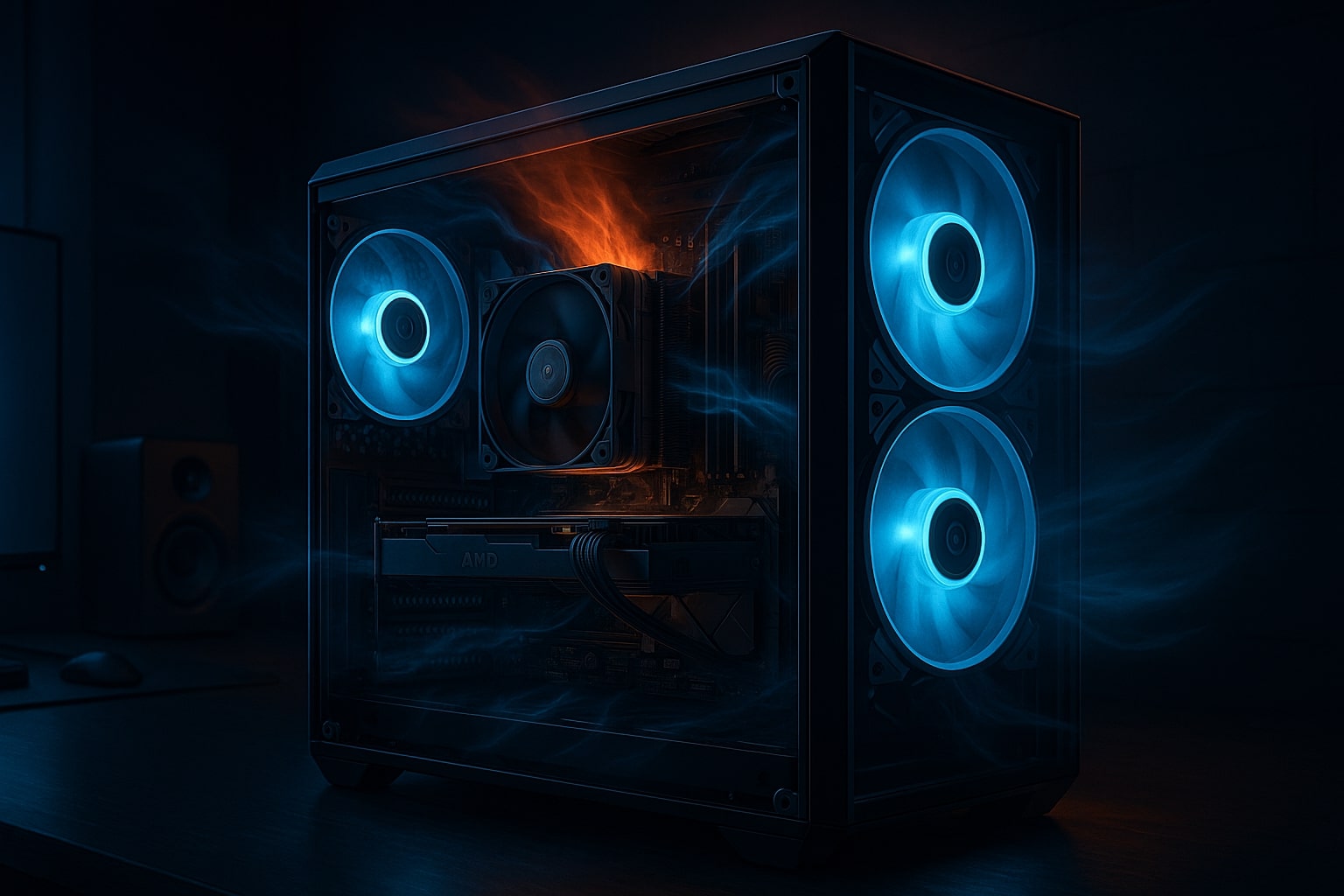
Heat builds up when a system generates more heat than it can dissipate. During gaming, both the CPU and GPU can remain under sustained load, which places continuous demand on cooling hardware.
Overheating is commonly linked to a combination of airflow limitations, dust buildup, and cooling systems that are not matched to the hardware workload, which is especially important to consider when building or maintaining a value AMD gaming PC. High room temperatures can further raise baseline system heat, reducing cooling efficiency.
Common causes of overheating
-
Dust buildup restricting airflow through fans and filters
-
Limited case airflow or poorly positioned fans
-
Cooling hardware that cannot handle sustained gaming load
-
Dried or uneven thermal paste on the CPU
-
High ambient room temperature
Warning signs that often appear first
-
FPS drops after extended gameplay rather than immediately
-
Fans becoming loud and staying at high speed
-
Stuttering that increases over time
-
Sudden restarts or shutdowns under load
If performance degrades gradually during a session, overheating is often the underlying issue.
Monitoring CPU Temperature and System Heat on AMD Gaming PCs
Monitoring temperatures removes guesswork and helps identify whether the CPU, GPU, or case airflow is responsible for rising heat. Reliable monitoring also confirms whether changes are actually working.
During testing, focus on temperatures and behaviour during real gameplay rather than relying on short stress tests alone. Running the same game, map, or benchmark for 15 to 30 minutes provides clearer results.
What to monitor during gaming
-
Overheating CPU temperature and package temperature
-
GPU temperature and hotspot readings if available
-
Fan speeds for the CPU cooler and case fans
-
Clock behaviour during sustained load
Many Ryzen CPUs are designed to operate at higher temperatures, so a single peak reading does not always signal a problem. What matters is whether heat causes clock speeds to drop, fans to surge constantly, or performance to decline during longer sessions.
Cooling and Airflow Solutions for AMD Gaming PCs
Airflow is the foundation of effective cooling. Even a high-quality CPU cooler will struggle if warm air remains trapped inside the case or recirculates around key components. For gaming systems, airflow must support both the CPU and GPU under sustained load.
A practical airflow layout introduces cool air through front or bottom intake fans and removes warm air through rear and top exhaust paths. This creates a steady flow that carries heat away from the motherboard, graphics card, and power delivery areas.
Airflow improvements with clear impact
-
Cleaning dust filters and clearing blocked vents
-
Removing dust from fans, heatsinks, and radiator fins
-
Ensuring fans face the correct intake or exhaust direction
-
Re-routing cables away from intake paths and the GPU area
Case placement also matters. Placing a PC close to walls, under desks, or inside enclosed furniture can trap hot exhaust air, raising internal temperatures over time. Leaving clear space around intake and exhaust areas helps maintain consistent airflow.
Fan configuration should match the case design. Adding too many exhaust fans without sufficient intake can create negative pressure, drawing dust into the case through unfiltered gaps. Balanced airflow, with slightly stronger intake than exhaust, often keeps temperatures lower and reduces dust buildup.
Fan curves deserve attention as well. If fans respond too slowly, heat builds up before airflow increases. Adjusting curves so fans ramp earlier, while avoiding constant speed changes, often improves temperature stability and reduces noise during gaming.
If temperatures still rise rapidly after airflow improvements, the cooling system itself may be undersized for the hardware and workload.
Thermal Paste, Component Fit, and Heat Reduction Settings
Thermal paste and cooler mounting affect how efficiently heat transfers from the CPU to the cooling system. Over time, paste can dry out, and mounting pressure can become uneven.
If temperatures worsen gradually over months or spike immediately under load, checking thermal paste and cooler contact is worthwhile. Reapplying paste should be done carefully, using even pressure and correct mounting hardware.
Heat can also be reduced through sensible system settings. Aggressive power limits, unnecessary overclocks, and background tasks can increase temperatures without improving gameplay.
Settings that often reduce heat
-
Using moderate power limits where supported
-
Avoiding manual overclocks when cooling is limited
-
Checking background processes that keep CPU usage high
-
Capping FPS in games that push hardware unnecessarily
These steps often stabilise temperatures while keeping gameplay smooth.
Get Support for AMD Gaming PC Overheating Solutions
If airflow improvements, fan adjustments, and sensible heat reduction steps do not resolve overheating, the system may need deeper assessment. Case design, cooler choice, and component balance all influence thermal behaviour.
Ginger6 builds custom AMD gaming PCs in the UK and supports gamers who want stable performance with controlled temperatures. With a configurable builder, mainland UK delivery on many systems, a three-year warranty, and lifetime support, Ginger6 helps players choose cooling solutions that match their hardware and gaming needs, and resolve overheating issues that lead to performance drops.