




How To Get More FPS With An AMD Gaming PC
Getting higher frame rates on an AMD Gaming PC often comes down to a few practical changes across display settings, AMD Radeon software, Windows configuration, and in-game options. When these are aligned, you can reduce stutter, improve responsiveness, and keep frame delivery steadier in demanding scenes. This page explains how to get more FPS with an amd gaming pc using settings that are easy to review, test, and adjust. The focus is on repeatable steps that help you measure improvements rather than guessing.
FPS and Refresh Rate Settings That Change Gameplay Feel
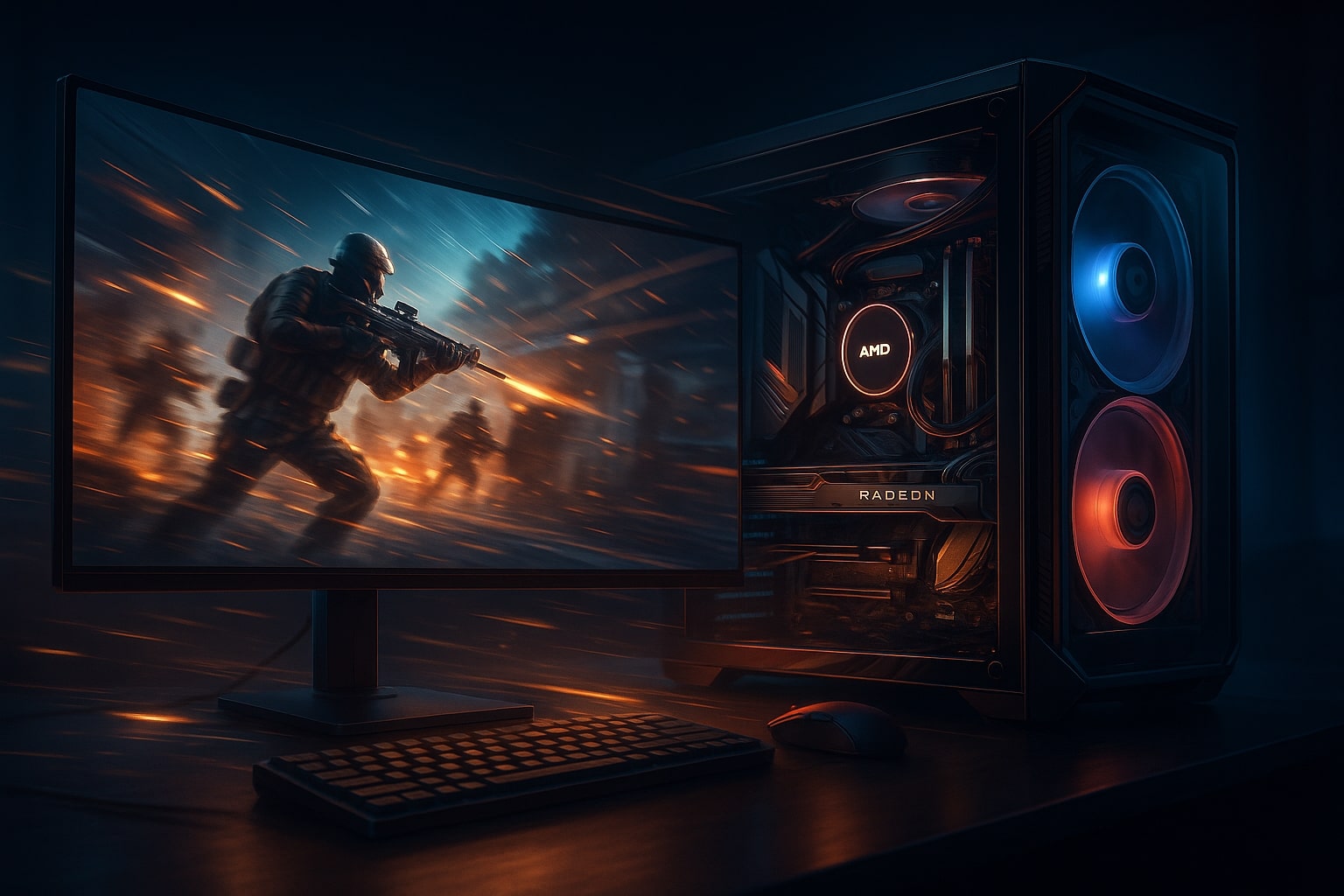
FPS (frames per second) is how many frames your system produces each second. Refresh rate is how many times your monitor updates per second (Hz). Both matter, and they need to match your target on an AMD gaming PC.
If your monitor is set to 60Hz, the smoothness ceiling is limited, even if your PC can output higher FPS. If your monitor supports 120Hz, 144Hz, 165Hz, or higher, you can benefit from higher FPS, but only if Windows and the game are configured to use that refresh rate.
Quick checks for display and refresh rate setup
-
In Windows display settings, confirm your monitor is set to its highest supported refresh rate
-
In-game, confirm refresh rate matches Windows
-
Use full screen or exclusive full screen if a game offers it and behaves well on your system
-
If your display supports variable refresh, enable it on the monitor and in the AMD driver settings where applicable
What to target on an AMD gaming PC based on play style
-
Competitive shooters: Prioritise stable FPS that sits close to your monitor refresh rate
-
Single-player titles: Aim for steady frame pacing and settings that prevent sharp frame drops
-
Mixed use: Pick a stable target such as 60, 90, 120, or 144 FPS depending on your hardware and monitor
A stable 120 FPS usually feels smoother than a system that jumps between 80 and 150 FPS. Consistency is often what players notice first.
AMD Radeon Software Settings in Windows That Improve FPS
AMD Software Adrenalin Edition is where many of the highest-impact driver-level changes live for an AMD ryzen gaming PC. Make changes gradually and test after each step.
Core AMD Radeon settings to review
-
Radeon Boost for fast movement scenarios where extra FPS helps responsiveness
-
Radeon Anti-Lag to reduce input delay in supported games
-
Enhanced Sync to reduce tearing without the latency hit some players notice with traditional sync options
-
Wait for Vertical Refresh set to “Off, unless application specifies” when FPS is the priority
-
Texture Filtering Quality set to a balanced option rather than maximum quality
-
Surface Format Optimisation enabled where supported
Use AMD game profiles instead of changing everything globally
A global driver profile works as a baseline, but many players see better results using per-title AMD profiles. Some games benefit from Radeon Boost, while others run more smoothly with a fixed frame cap and fewer driver overrides.
Built-in AMD performance monitoring
Use the Radeon overlay or performance metrics to check:
-
GPU usage, which suggests a GPU limit when near maximum
-
CPU usage and per-core behaviour, which can highlight CPU limits
-
VRAM use, where high usage can cause stutter and sudden dips
-
Temperatures and clock stability, as heat can reduce sustained performance
Low GPU usage combined with low FPS often points to background tasks or CPU limits rather than graphics settings.
AMD In-Game Settings That Usually Deliver the Biggest FPS Gains
In-game changes often provide the fastest improvements on an AMD gaming PC. The goal is to remove the largest performance drains first, then refine clarity.
In-game settings that commonly cost the most FPS
Lower these first for quick gains:
-
Shadows, including distance and resolution
-
Volumetric lighting and fog
-
Reflections and screen-space effects
-
Heavy post-processing such as motion blur and film grain
-
Ray tracing options where available
AMD texture and VRAM management
Texture quality depends heavily on available VRAM. If VRAM is close to full, performance can become inconsistent, so dropping textures one level can help stabilise frame delivery, especially at higher resolutions.
Resolution, scaling, and anti-aliasing on AMD systems
-
Use native resolution when FPS remains stable
-
Apply resolution scaling or a lower resolution if dips are frequent
-
Reduce anti-aliasing if it causes large performance drops
Frame caps and pacing for AMD gaming PCs
For smoother gameplay:
-
Cap FPS slightly below your monitor refresh rate
-
Avoid uncapped FPS in games with large performance swings
-
Re-test after each adjustment using the same scene or benchmark
Using the same test method each time makes improvements easier to measure.
Windows and Hardware Optimisation for Stable FPS
After tuning driver and in-game settings, Windows and hardware behaviour can further improve stability on an AMD gaming PC.
Windows settings that often help AMD gaming performance
-
Enable Game Mode
-
Select a performance-focused power plan
-
Disable unnecessary startup applications
-
Reduce background overlays if stutter appears
-
Confirm display refresh rate in Windows
AMD application-specific profiles
Create different profiles for:
-
Competitive games where low latency matters most
-
Single-player titles that prioritise visuals
-
Games that stutter unless FPS is capped
This approach keeps performance predictable without constant setting changes.
Hardware tips that support steadier FPS
-
Keep cooling areas clean and free of dust
-
Monitor temperatures during long sessions
-
Ensure RAM runs at its intended speed
-
Keep graphics and chipset drivers up to date
Stable temperatures usually support stable clock speeds and smoother FPS, while addressing AMD PC overheating helps prevent sudden performance drops during longer gaming sessions
Get Expert Help Improving FPS on an AMD Gaming PC
If you want consistent high FPS without trial and error, expert support can make the process easier. Ginger6 builds custom AMD gaming PCs in the UK and helps players optimise systems based on how they play, the games they run, and the performance targets they want to reach.
With a configurable custom AMD PC builder, mainland UK delivery on many systems, a three-year warranty, and lifetime support, Ginger6 provides practical help for gamers who want smoother performance, reliable frame pacing, and systems tuned for long-term use.