




Fixing BIOS Issues After Intel Gaming PC Upgrade
Upgrading an Intel Gaming PC often promises better performance, improved stability, and support for newer technologies. However, hardware changes frequently introduce BIOS issues that prevent a system from working as expected. These problems can appear immediately after installing a new CPU, GPU, memory kit, or storage device, leaving users facing boot failures, performance drops, or missing hardware detection. BIOS issues after Intel gaming PC upgrade usually stem from compatibility gaps between new components and existing firmware. Even when parts are physically compatible, the system firmware may not be prepared to recognise or configure them correctly. This often surprises users who expect upgrades to work instantly.
Understanding how the BIOS interacts with upgraded components helps reduce downtime and prevents unnecessary replacements. Many problems that appear serious at first can be resolved through careful checks and structured troubleshooting.
Why BIOS Problems Appear After Hardware Changes
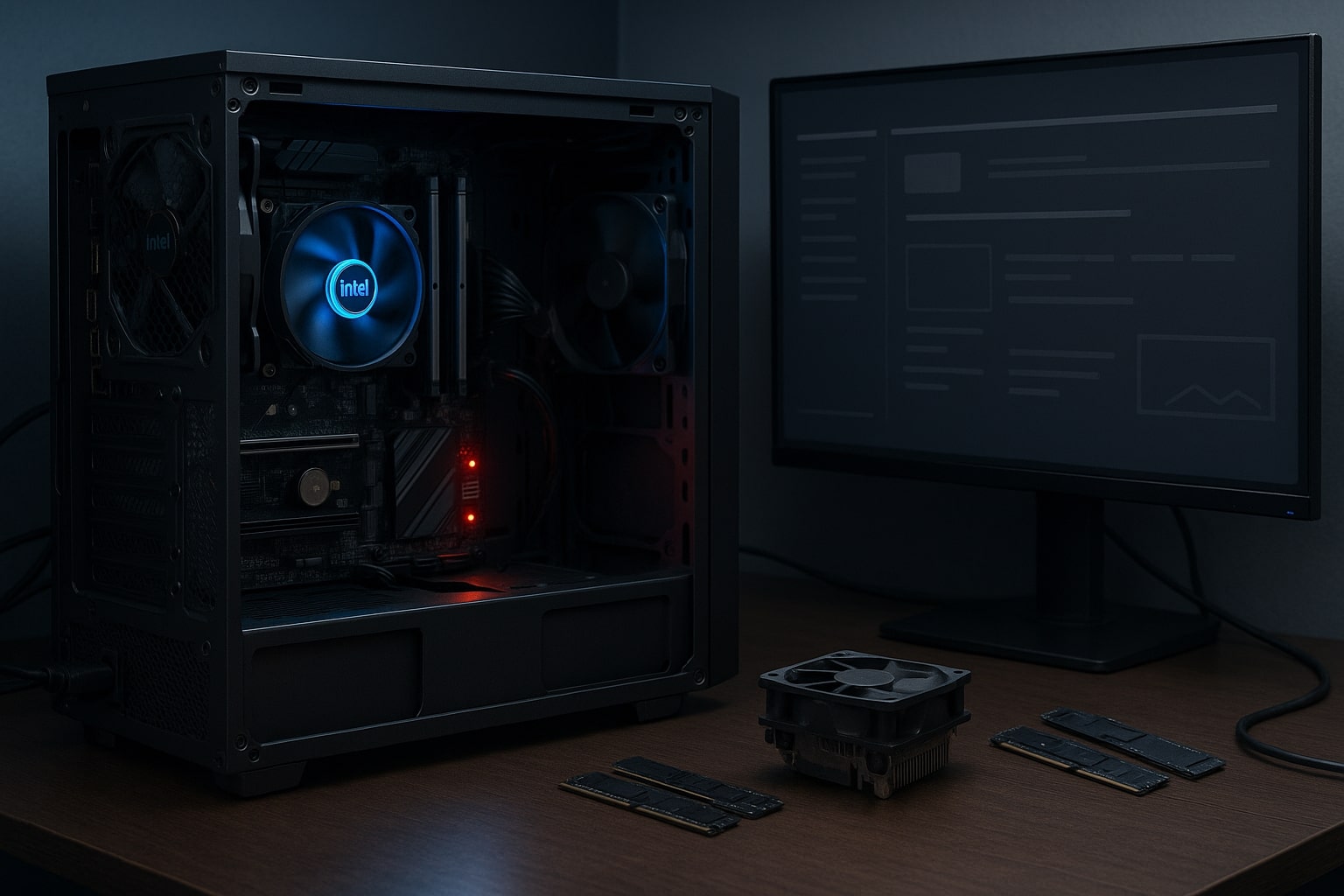
The BIOS plays a central role in how a PC starts and communicates with installed components. When a system powers on, the BIOS checks the CPU, memory, storage, and connected devices before handing control to the operating system. Any mismatch during this process can prevent a successful boot.
After an Intel gaming PC upgrade, BIOS issues often arise because the firmware version does not fully support the new hardware. This is common when installing a newer Intel Core processor on an older motherboard or when adding high-speed memory that requires updated configuration tables.
Common upgrade scenarios that trigger BIOS issues
-
Installing a newer Intel CPU on a motherboard running an older BIOS
-
Adding faster memory modules that exceed default firmware profiles
-
Switching from SATA storage to NVMe without updating boot settings
-
Changing graphics cards that rely on newer firmware initialisation methods
Another source of trouble is partial or interrupted BIOS updates. If power is lost or the wrong firmware file is applied, the BIOS may fail to initialise key components. Even when the update completes, default settings may be restored in ways that conflict with the system’s previous configuration.
These issues are rarely caused by a single factor. Instead, they reflect how tightly BIOS behaviour is linked to the specific combination of motherboard, CPU, memory, and connected peripherals in a gaming system.
Common Symptoms Linked to BIOS Issues
BIOS problems after an Intel gaming PC upgrade often show clear warning signs. One of the most common symptoms is failure to boot, where the system powers on but never reaches the operating system. This may include repeated restart loops or a system that appears active but shows no display output.
Signs that point to BIOS-related faults
-
System powers on but does not POST
-
Blank screen with running fans and lights
-
Sudden performance drops after an update
-
Memory or storage no longer detected
-
USB devices stop responding during startup
Intel gaming PC performance drops are another indicator. A system that boots successfully may still run below expected levels, with lower gaming frame rates, unstable clock speeds, or frequent crashes. These symptoms often appear when the BIOS applies incorrect default settings to the CPU or memory after a hardware change.
Peripheral failures can also signal BIOS trouble. USB devices such as keyboards, mice, or external drives may stop responding if controller settings were altered during an update. Storage devices may disappear from boot menus, preventing access to installed operating systems.
In some cases, users can access the BIOS interface but cannot save changes or restore stable behaviour. This suggests deeper firmware conflicts that require targeted fixes rather than repeated resets.
Diagnosing BIOS Issues on Intel Gaming Systems
Effective diagnosis begins with checking BIOS access. If the system reaches the firmware interface, confirm the installed BIOS version and compare it with the latest release from the motherboard manufacturer. Many Intel motherboards require specific BIOS versions to support newer processors or memory configurations.
Steps to take during diagnosis
-
Verify the current BIOS version against manufacturer release notes
-
Check boot mode settings and storage detection
-
Review memory profiles and voltage values
-
Confirm CPU recognition and core configuration
Next, review BIOS settings that commonly change during updates. Boot mode, memory profiles, and CPU power limits should be checked carefully. Incorrect values here often cause instability even when hardware is compatible.
If the system fails to POST, recovery options should be considered. Many Intel-based motherboards include BIOS recovery features that allow reinstallation of firmware using a USB drive. These tools can restore functionality after a failed update, provided the correct file is used.
Peripheral-related issues require separate checks. Testing USB devices on another system helps confirm whether the problem lies with the hardware or the BIOS configuration. If all peripherals fail, chipset drivers and firmware settings should be reviewed together.
The goal during diagnosis is to identify whether the issue stems from firmware compatibility, configuration changes, or incomplete updates. Each cause requires a different response, and guessing often prolongs the problem.
Preventing Future BIOS Problems After Upgrades
Prevention starts before any hardware change. Confirming motherboard support for a specific Intel CPU or memory kit reduces the likelihood of firmware conflicts. Checking manufacturer compatibility lists and update notes provides valuable context on required BIOS versions.
Preventative best practices
-
Update the BIOS before installing new hardware when possible
-
Use stable power during firmware updates
-
Record existing BIOS settings before changes
-
Avoid beta firmware unless required for compatibility
After upgrades, reviewing BIOS settings manually helps catch silent changes. Memory profiles, boot order, and peripheral support options should be confirmed before extended use. This simple step often prevents performance issues from appearing days or weeks later.
Maintaining documentation also helps. Recording BIOS versions and configuration changes makes future troubleshooting faster and more accurate, especially when multiple upgrades occur over time.
Get Help With BIOS Issues After an Intel Gaming PC Upgrade
Some BIOS issues resolve quickly, while others persist despite careful troubleshooting. When repeated attempts fail to restore stability, it can help to get assistance from a team that specialises in custom PC builds and configuration support.
If BIOS issues are affecting your Intel gaming PC after an upgrade and you want practical help from a UK company with decades of experience, Ginger6 offers expert advice and technical support focused on gaming and custom built systems. Ginger6 can help you check hardware compatibility, configure firmware settings correctly, and recommend upgrades that fit your needs. With a long track record of supporting UK gamers and builders, Ginger6 provides support that helps you return to stable, high-performance computing with confidence.