




How to Reduce Stutter in Battlefield: Optimising Battlefield Graphics
Stutter in Battlefield feels awful. One moment, everything is smooth, the next your screen freezes for a split second just as you peek around a corner or line up a headshot. Those tiny hitches break focus and can throw off even experienced players.
The good news is that most Battlefield stuttering has clear causes. Hardware capability, CPU cores, graphics settings, and input configuration all feed into how consistently frames are delivered. With a sensible setup and a few targeted tweaks, you can make your Battlefield matches feel far smoother.
How to reduce stutter in Battlefield? The advice below is shaped for PC players and aligned with the kind of hardware Ginger6 builds: balanced Battlefield 6 Gaming PCs that are stress-tested for long multiplayer sessions and tuned to run modern shooters reliably.
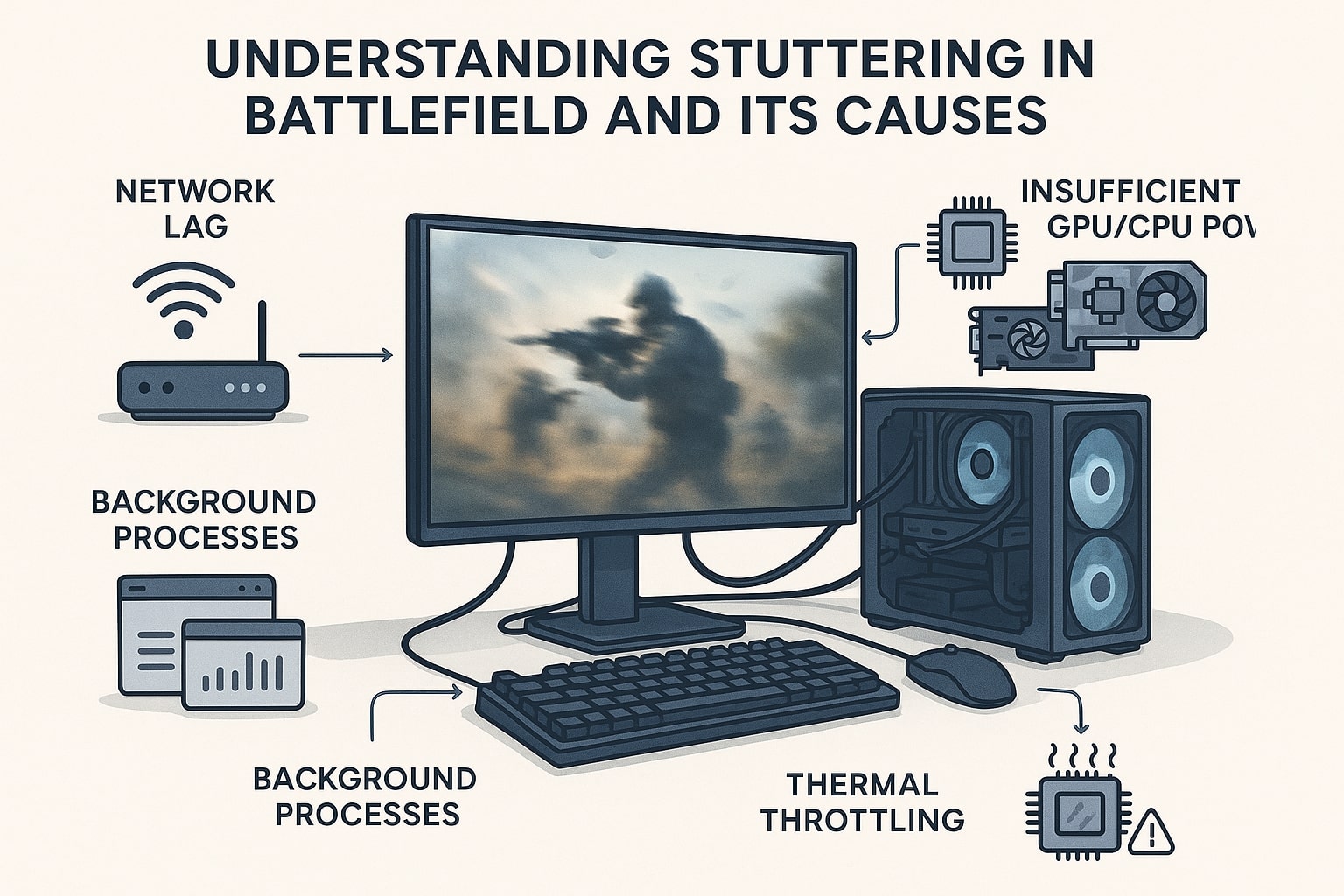
What Battlefield Stuttering Looks Like and Why It Happens
Stutter is different from low FPS. A low but stable frame rate feels slow and less responsive, yet it is predictable. Stutter shows up as random skips and micro-freezes while the FPS counter jumps around. In Battlefield, this often happens when explosions fill the screen, vehicles rush past, or you move quickly across dense terrain.
Under the hood, Battlefield’s game engine is trying to juggle a lot of work every millisecond. Physics, destruction, ballistics, animations, audio, network traffic, and input all have to be processed, then each frame must be rendered and sent to your monitor. If any part of that pipeline struggles, frames arrive late, and you feel a hitch.
Modern CPUs use performance cores to handle the heavier work. Battlefield is built to make use of multiple cores, which is why older or heavily loaded processors can begin to struggle in 64-player matches. If performance cores are saturated by background applications or restricted by poor cooling, the game engine has to wait for work to complete before sending out new frames. That waiting shows up as stutter.
Graphics hardware plays a part as well. When GPU usage spikes close to 100 per cent, frame rendering can become inconsistent, especially at high resolutions and ultra graphics settings. Texture quality, mesh quality, shadow quality, and screen space effects all increase the workload. Whenever the GPU needs an extra moment to finish a frame, you will see a tiny freeze.
Storage and memory matter too. If Battlefield cannot read data from storage quickly, or if RAM is full and the system starts swapping to disk, the engine has to pause briefly while assets arrive. That is why moving from a hard drive to an SSD and having enough RAM often removes a lot of small hitches.
Understanding that stutter is usually a symptom of pressure on CPU, GPU, memory, or storage makes it easier to fix. The aim is to reduce big spikes in workload and keep frame delivery as even as possible.
Hardware Foundations for Smooth Battlefield Performance
Before touching the graphics menu, it helps to make sure the PC itself is ready for long Battlefield sessions. Stutter often shows up first on machines that are technically “fast enough” but poorly cooled or running with unbalanced hardware.
Start with the processor. A modern multi-core CPU with strong single-thread and multi-thread performance provides the best base. Battlefield benefits from several active performance cores, especially when you mix gaming with chat apps, browsers, or recording tools. If you are still using an older quad-core chip, heavy scenes will push it hard, and stutter becomes more likely.
Cooling is the next check. If the CPU or GPU regularly hits high temperatures, both will reduce their own clock speeds to stay within safe limits. That sudden drop in frequency can coincide with a busy moment on screen, which is exactly when you notice a hitch. Make sure case fans are arranged to pull cool air in at the front and push warm air out at the rear or top, that dust filters are not clogged, and that coolers are mounted properly.
RAM capacity also shapes smoothness. Battlefield likes plenty of memory, particularly on 64-player maps. With 16 GB, you are usually fine for gaming, but if you keep many tabs and background tools open, 32 GB gives more breathing room. When RAM fills up and Windows starts to page data out to a slower drive, you feel it as a regular stutter.
Storage speed has a direct effect on map loading and can influence hitching when you move into new areas. An NVMe SSD lets Battlefield stream textures and terrain quickly, which reduces small pauses after spawning or when moving across the map.
Ginger6 custom gaming PCs are built with that whole picture in mind. Systems are assembled with carefully chosen CPUs, GPUs, memory, and NVMe SSDs, then stress tested for around twenty-four hours to uncover any instability before they ever reach a player’s desk.
That kind of preparation removes a lot of the hidden causes of stutter and gives you a firm baseline for fine-tuning.
Optimising Battlefield Graphics Settings to Cut Stutter
Once you trust your hardware, you can focus on the in-game graphics settings. A sensible starting point is resolution. Higher resolutions look sharper but demand many more pixels per frame. If you are trying to steady FPS on a mid-range GPU, running 1440p or higher with everything maxed out will frequently cause stutter. Try matching the game’s resolution to your monitor and, if necessary, reduce it slightly or use an upscaling option such as DLSS or FSR so the GPU has less work while the image still looks clean.
Next come the major quality sliders:
-
Texture quality. If your graphics card has enough VRAM, you can usually keep textures on high. They influence how surfaces look without hammering frame rate too heavily. Only drop them if you see VRAM use maxing out.
-
Terrain quality and mesh quality. These decide how detailed the landscape and world geometry appear. Very high values add a lot of distant detail but can hit performance in large outdoor scenes. Moving them from ultra to high often gives smoother FPS with little loss of clarity.
-
Shadow quality. High-resolution dynamic shadows cost a lot of GPU time. Lowering shadow quality is one of the most effective ways to reduce big spikes in GPU usage during heavy action.
-
Screen space effects. Features such as screen space reflections and ambient occlusion look nice, but contribute to stutter in busy urban maps. Testing medium or low settings here is often worthwhile.
Motion blur and film grain deserve particular attention. While they can make movement look more cinematic, they also mask visual information and spend GPU time on effects that many competitive players disable. Turning motion blur off and reducing film grain usually improves clarity and can save a few frames.
Vertical sync is another setting that should be treated carefully. It solves tearing by synchronising frame output with your monitor, but traditional V-Sync can introduce input lag and accentuate stutter when FPS drops below your refresh rate. A better route is to use adaptive sync technologies, such as G-Sync compatible or FreeSync, along with a frame rate cap slightly below your monitor’s refresh rate. This combination keeps input lag down and avoids the harsh judder that appears when V-Sync misses a frame.
Aim for a graphics preset that produces a stable FPS rather than chasing the highest possible number. A flat 90 FPS without spikes nearly always feels nicer than 130 FPS that regularly drops to 60 during explosions. On a Ginger6 gaming PC, you have enough performance headroom to keep many settings high, but the same principle applies: small reductions in terrain, mesh, or shadow quality can remove the worst hitches without making the game look dull.
Input, Background Software, and Mouse Tuning
Even with balanced graphics settings, stutter can sneak in through input and system processes. Cleaning up these areas helps Battlefield feel more responsive.
Mouse behaviour is a good example. Battlefield rewards precise tracking and flicks, which are difficult if mouse input feels inconsistent. Disabling mouse acceleration in both Windows and the game means your cursor moves the same distance for the same hand movement, improving muscle memory and removing perceived “stickiness” in aim.
Mouse polling rate also has an influence. This setting controls how often the mouse reports its position to the PC. Many gaming mice default to 500 Hz or 1000 Hz. Higher values give smoother, more accurate tracking, but extremely high polling rates can occasionally cause micro-stutter on systems that are already busy, because the CPU has to handle more frequent input events. Testing both 500 Hz and 1000 Hz and picking the one that feels smoother on your hardware is usually the best approach.
Background software can silently create stutter by competing for CPU time, memory, or storage access. Web browsers with many tabs open, RGB control suites, recording tools, and cloud backup utilities all take small bites out of system resources. Before launching Battlefield, close non-essential applications and disable scheduled scans or heavy background tasks.
For users who like more control, tools such as process priority managers let you give Battlefield higher CPU priority, which helps keep frame times even when other processes wake up. Used sensibly, this kind of tweak keeps the game loop running smoothly by ensuring it is first in line for processing time.
Network behaviour also affects how you perceive stutter. Lag spikes and packet loss can look very similar to rendering hitches. Selecting servers with low ping, using a wired Ethernet connection where possible, and setting Quality of Service rules on your router so your gaming PC has priority will all reduce the chances of network-driven “stutter” that is actually latency.
Ginger6 systems are built with strong processors and quality network hardware, which means they cope well with high polling rates, multiple peripherals, and modern routers. If you are unsure how to tune these aspects on your rig, Ginger6 lifetime support is available to talk through settings with you.
Performance Cores, Mouse Acceleration, and More: Putting It All Together
Reducing stutter in Battlefield is about removing bottlenecks one by one. Start with a healthy foundation: a cool, balanced gaming PC with strong performance cores, a capable GPU, adequate RAM, and an SSD that can keep up with large maps. Then tune the graphics settings so that frame rate stays smooth during the busiest moments, even if that means trimming a little visual flair. Follow up by tightening mouse behaviour and controlling background software so nothing unexpected interrupts the game loop.
For many players, these changes alone transform Battlefield from a jittery experience into something that feels controlled and responsive. If you still run into constant hitches after sensible tuning, your hardware may simply be hitting its limits. In that case, looking at a modern custom gaming PC is often the most effective way to gain both higher FPS and more stable frame delivery.
Ginger6 specialises in gaming PCs built for demanding titles like Battlefield. Systems are designed around real-world testing rather than marketing specifications, with long stress tests, careful component choices, and tidy cable management to keep airflow and power delivery reliable. That approach gives you a platform where optimised Battlefield graphics settings really pay off, instead of being undermined by hidden hardware issues.
If you would like help deciding whether to tune, upgrade, or replace your current setup, you can speak directly to the Ginger6 team. Share your current hardware, resolution, and typical FPS, and they can suggest practical adjustments or a custom build that suits your budget and play style.
When you are ready to smooth out your Battlefield matches, visit Ginger6 to review gaming PC options or get tailored advice. With sensible settings, a clean system, and hardware that has been built and tested for modern shooters, stutter becomes far less common, and you can focus on winning the fight instead of fighting your frame rate.