




How Codecs Affect Editing Performance
Smooth playback and responsive controls make video editing feel creative rather than frustrating. If your timeline stutters every time you press play or scrub through a clip, the codecs you are using are often a major part of the story. Understanding how codecs affect editing performance helps you choose formats that suit both your workflow and the specification of your editing PC, so your Ginger6 system has the freedom to work at full speed.
What Codecs Do to Your Footage
A codec is a method of compressing and decompressing video data. Every frame that reaches your timeline has already passed through at least one codec on the way from camera sensor to storage. That codec decides how much information is kept, how it is packed into a file, and how much work your system must do to display each frame while you edit.
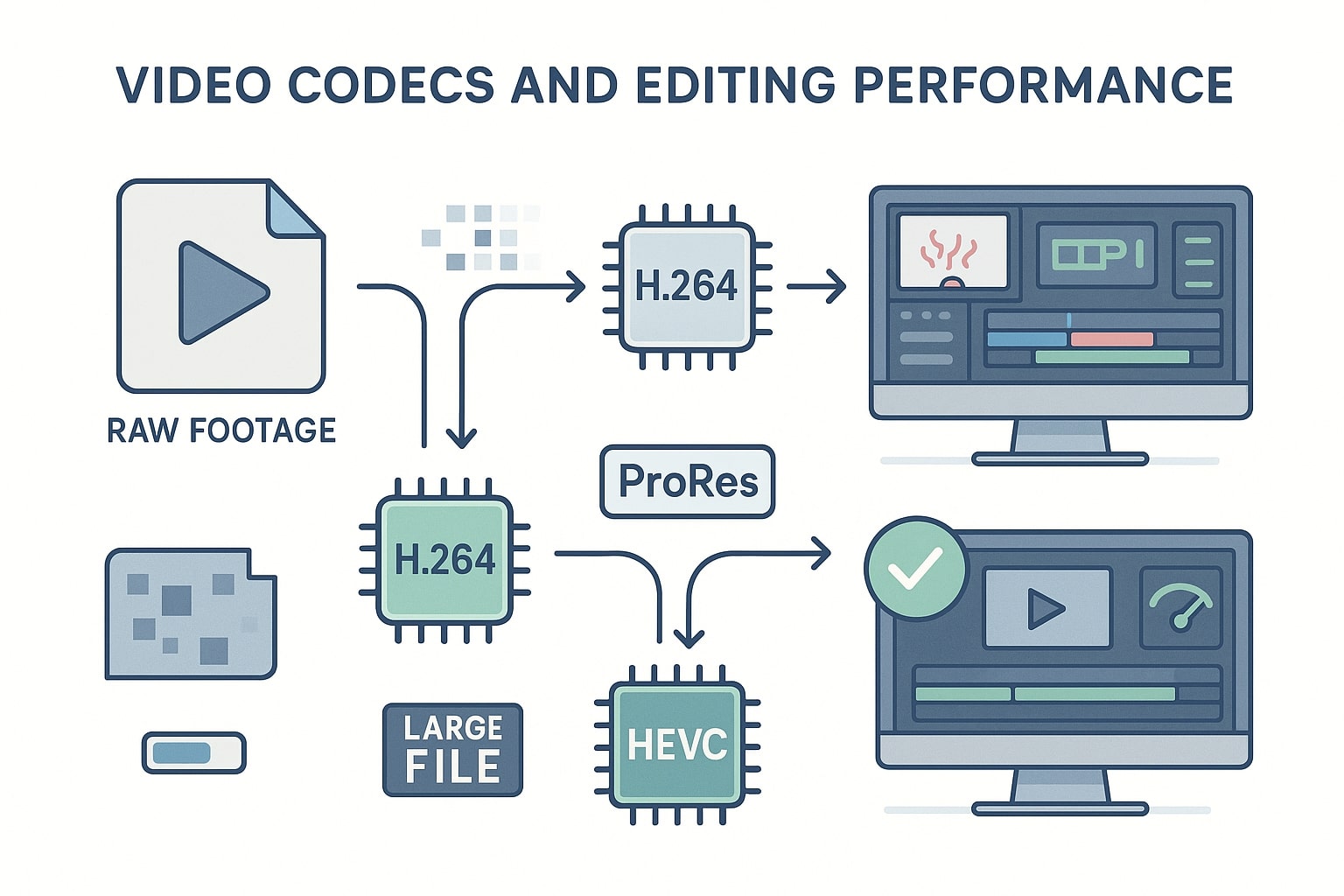
Highly compressed formats such as H.264 and H.265 are popular because they keep file size low and are widely supported for playback and delivery. They achieve this by analysing frames over time and discarding data that the human eye is less likely to notice. The result is a compact file that streams easily, but the maths required to decode each frame is demanding. When you try to scrub, trim or play back several of these clips at once, your processor has to decode a complex stream in real time, which places a heavy load on the CPU and can lead to sluggish behaviour in the timeline.
Editing-focused codecs such as Apple ProRes or Avid DNxHD take a different approach. They keep much more information per frame and use simpler compression, so the files are larger but easier to decode. This lowers the strain on your CPU and allows smooth, predictable playback even with layered timelines or high resolution footage. High bitrate files need faster storage and enough capacity on your media drives, but they reward you with responsive edits and fewer dropped frames.
Matching codec choice to the strength of your hardware gives you control over how your system behaves. A powerful Ginger6 machine with modern multi core processors, ample RAM and fast NVMe SSD storage can handle heavier codecs with confidence, while also giving you room for large, editing-friendly formats when you want maximum responsiveness.
Editing Codecs versus Delivery Codecs
In a professional workflow it helps to think of your media journey in two stages: editing and delivery. During editing, you care about how responsive the software feels, how easily you can scrub through the timeline and how reliably effects render in previews. During delivery, your focus shifts to file size, upload time and compatibility with streaming platforms or client devices.
Editing codecs such as ProRes, DNxHD or other intraframe formats keep each frame relatively independent. That independence allows your software to jump around the timeline without constantly referring to other frames to rebuild the picture. On a custom-built Ginger6 PC, these codecs take advantage of strong processors and fast media storage to give you real-time playback on complex timelines, even when you are working at 4K or with multicam edits.
Delivery codecs, including H.264 and HEVC, are tuned for viewing rather than editing. They compress video so it plays smoothly on laptops, phones and televisions over limited bandwidth connections. They shine when you upload a finished film to a client portal or video platform, but when used as editing formats they can block your workflow. The processor has to work hard to decode every frame, and any attempt to layer multiple streams, add effects or preview quickly can lead to lag.
For that reason many editors adopt a two-step approach. They either record directly into an editing friendly codec, or transcode camera originals into one before starting serious post production. Only when the edit is locked do they export to a delivery codec tailored to the platform or client requirement. This keeps your Ginger6 system focused on real time responsiveness while you edit, and only calls on heavy compression once you are ready to share.
Balancing File Size, Storage and System Resources
Codec choice has a direct effect on file size, which in turn shapes your storage strategy. High bitrate editing codecs produce larger files that occupy significant space on your media drives. For long projects with many hours of footage, or for studios that keep extensive archives, this can be a noticeable investment.
On the other hand, working only with highly compressed files can push your CPU to its limits and make even simple edits feel slow. The art is in balancing compression, quality and hardware capacity. A sensible layout might use a fast NVMe SSD as the main work drive for current projects, with a second SSD or high speed hard drive for archives. Large editing codec files live on the fast storage while the project is active, then move to slower drives once delivered. Compressed delivery versions take up far less space and are easy to store or send.
Ginger6 systems are designed with these trade offs in mind. More RAM reduces the need to pull data from disk constantly, while fast PCIe NVMe SSDs allow your editing software to stream high bitrate media without hesitation. When you discuss your workflow with the team, they can recommend combinations of storage capacity and speed that match the codecs you use most often, whether that is long GOP camera files, intraframe editing codecs, or a blend of both.
Practical Ways to Improve Editing Performance with Any Codec
Even without changing format, there are several habits and settings that can make codecs behave more kindly towards your system.
One of the most powerful tools is proxy editing. Many editing applications can generate lower resolution or more editing friendly proxy versions of your clips while retaining a link to the original files. You work on the lighter proxies during the edit, then switch back to full quality for export. This approach is especially helpful for heavily compressed 4K or 6K footage on long timelines.
Preview and cache settings also matter. Choosing an appropriate preview codec for your timeline means rendered sections play back smoothly without re-decoding the original media each time. Storing previews on a fast SSD keeps them responsive. Clearing old cache files periodically frees space and can prevent slowdowns when projects build up.
Hardware acceleration settings in your editing software can offload certain codec tasks to the GPU. On a Ginger6 system with an NVIDIA RTX card, enabling supported GPU acceleration can speed up playback and exports for formats that take advantage of it. Ensuring drivers are up to date and that your software is configured to use the available hardware avoids leaving performance unused.
Finally, general housekeeping still matters. Keeping plenty of free capacity on working drives, closing unnecessary background applications and avoiding very fragmented project folders all contribute to consistent performance. Codec decisions are central, but they work best when supported by tidy storage and sensible system habits.
How Ginger6 Custom PCs Support Demanding Codec Workflows
Codec behaviour and hardware design are tightly linked. A timeline full of high bitrate footage, layered effects and colour grading will behave very differently on an entry level machine compared with a purpose built editing workstation with multiple monitors . Ginger6 systems are assembled specifically with these demands in mind.
When you plan a build with Ginger6, the team will ask about your preferred recording formats, the editing codecs you use and the resolutions you work with day to day. A creator who works mostly in 1080p with lightly compressed footage has different requirements from a studio handling 4K multicam events or 6K raw. Using that information, Ginger6 recommends processors, RAM amounts, storage layouts and GPUs that complement your codec choices instead of fighting them.
Every custom PC is then stress-tested for extended periods, with sustained CPU and GPU loads and continuous read and write activity across the drives. That testing mimics the demands of real editing sessions, where codecs are decoded, effects composed and previews rendered for hours at a time. Any component that shows instability is replaced before the machine leaves the West Midlands workshop, so the system that arrives on your desk is ready for production work.
If you are planning a new workstation or wondering whether to adjust codecs, storage or hardware first, you can talk through your current projects with a Ginger6 specialist. Explore our custom workstations built for demanding video workflows. Share the formats you record in, the resolutions you cut at and the tools you rely on, and they will suggest a configuration that keeps your chosen codecs running smoothly. That way, codec decisions become a strength in your workflow rather than a source of lag, and your editing PC feels like a dependable partner on every project.