




Top Dual Monitor Tips for Video Editors
Setting up dual monitors can transform how you edit. With more room for timelines, previews and tools, it becomes easier to stay focused on the cut rather than wrestling with windows. Ginger6 builds video editing computers that are designed to drive multiple displays for real-world creative work, so the hardware behind your screens is as dependable as your editing skills. Read on for dual monitor tips for video editors.
Why Dual Monitors Help Video Editors
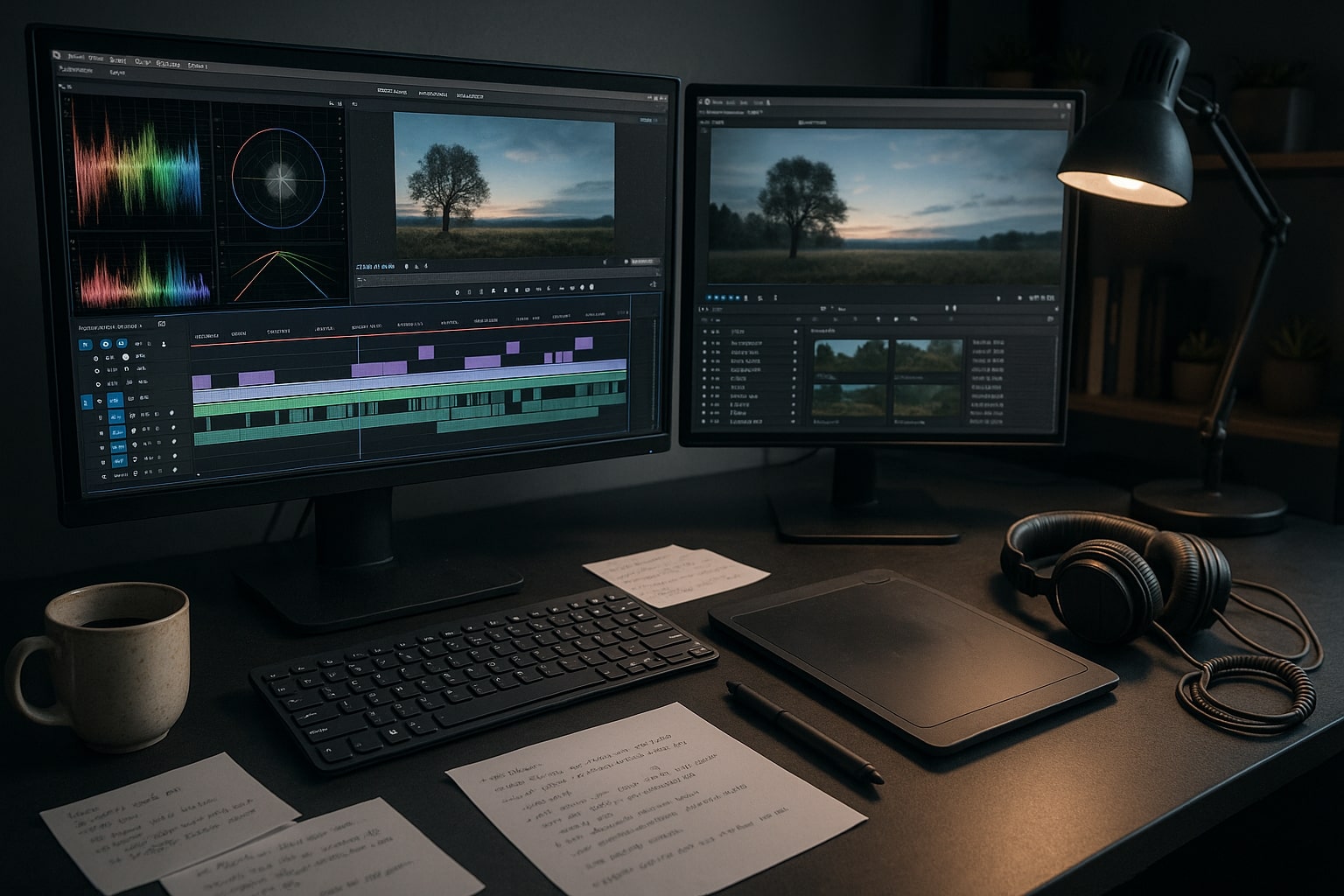
For many video editors, dual monitors feel like moving from a cramped desk to a proper studio bench. One display can carry your timeline, bins and key editing controls, while the other shows a large preview window, scopes, notes or reference material. You spend less time shuffling panels and more time judging pacing, colour and sound.
Screen space matters even more when you work on layered timelines, multicam edits or projects that mix motion graphics, titles and audio. A second monitor gives room for effect controls, colour wheels and audio meters without hiding the sequence itself. Instead of constantly switching workspaces, you can keep everything visible and laid out in a way that matches your own habits.
Paired with a custom Ginger6 workstation, dual monitors also help you get the most from your hardware. Modern GPUs and processors are designed to handle several displays, and a well-balanced system will keep playback smooth even when both screens are full of panels, scopes and high-resolution previews. That combination of screen space and stable performance is what makes dual monitor tips for video editors so valuable in everyday work.
Choosing Monitors and Resolutions for Dual-Screen Editing
Good results start with choosing monitors that work together. Matching or closely related sizes with the same resolution makes it easier for your eyes to move between screens. If one monitor is 1080p and the other is 4K, user interface elements and preview windows can jump in size as you drag them across, which quickly becomes tiring. Two 1440p or two 4K displays, or a 4K plus a 4K-compatible pen display, feel far more consistent.
Colour and brightness should also be handled in a similar way on both screens. Calibrating your displays and keeping them at comparable brightness lets you trust that a shot looks the same whether it sits on the preview screen or on the timeline monitor. Many editors keep their main grading or preview screen as the more colour-accurate display, with the secondary monitor used for panels and tools, but both should be close enough that you are not second guessing every shot.
Resolution has a direct impact on hardware requirements. Higher resolutions mean more pixels for the GPU to drive and more room for high resolution previews. A Ginger6 custom PC can be specified with an NVIDIA RTX card and sufficient video outputs to support a pair of QHD or 4K monitors, along with the CPU and RAM needed to keep editing software responsive. During build and test, systems are checked under load so that multiple displays stay stable during long sessions.
Arranging Your Dual Monitor Workspace
Once you have the screens, physical placement makes a noticeable difference to comfort. Monitors should sit at the same height, with the top edge around eye level and the bezels as close together as practical. Whether you use individual stands or a dual arm, aim for a gentle curve so you can glance from one to the other without turning your neck sharply. Most editors keep the main preview or timeline screen directly in front, with the secondary monitor just off to the side.
In your operating system display settings, choose “extend” rather than “duplicate” so each monitor becomes part of a single wide desktop. Set the correct primary display for your main editing window, then drag panels, scopes and media bins to the second screen and save this as a custom workspace inside your editing software. That way, if windows get moved around, you can restore your preferred layout in one click.
Think about what you want to see without touching the mouse. Some editors keep the timeline, bins and tools on one monitor and reserve the second for a full-screen programme preview. Others dedicate the second screen to waveform monitors, vectorscopes and audio meters during grading and mixing. There is no single correct layout; the goal is to reduce friction so that your eyes move naturally through the story, not through a maze of floating panels.
Taskbar Settings, Shortcuts and Software Tweaks
Once the physical layout is comfortable, small operating system tweaks can make dual monitors feel far smoother. In Windows, you can choose whether the taskbar appears on one screen or across both. Many editors prefer to show the taskbar only on the secondary monitor, keeping the main display cleaner for the timeline and preview. Pinned editing software, project folders and utilities on that taskbar give quick access without covering your footage.
Keyboard shortcuts also play an important part in multi-screen work. Most editing applications allow you to customise shortcut sets, including commands for switching focus between panels, toggling full-screen preview and moving clips or windows. Spending a little time assigning easy-to-reach combinations for actions you perform dozens of times per day soon pays off. Moving a clip to the other monitor, expanding a panel or starting playback should never require a long mouse journey.
Your operating system has its own shortcuts that are particularly helpful with dual monitors. On Windows, for example, you can use the Windows logo button with the arrow keys to snap windows to each side of a screen or move them quickly from one monitor to the other. This works well for keeping reference material, scripts or chat applications tidy while leaving the bulk of screen space for editing software. Keeping a printed or on-screen reference of your preferred shortcuts nearby makes it easier to build new habits.
Clearing clutter helps too. Close applications that are not part of your current job, and move backup or file sync tools to less intrusive parts of the interface. A tidy dual monitor desktop reduces distractions and lets you focus on story, pacing and picture quality.
How Ginger6 Custom PCs Support Dual-Monitor Editing
Running dual monitors comfortably is not only about cables and stands. The workstation behind them has to keep up with high resolution previews, large project files and constant multitasking. Ginger6 builds systems specifically for content creators, which means thinking about GPUs, CPUs, RAM and storage as one balanced package rather than as separate upgrades.
A typical video editing build might pair a modern multi-core AMD Ryzen or Intel processor with 32 GB or 64 GB of RAM, an NVIDIA RTX graphics card and fast NVMe SSDs for system and media drives. That combination leaves room for multiple 4K displays, long timelines, heavy colour work and plenty of browser tabs or reference documents without constant stuttering or dropped frames. Storage can be split between very fast drives for current projects and larger SSDs or HDDs for archives, so scratch disks and cache files never fight with long-term backups.
Every Ginger6 workstation is assembled by hand in the UK and then stress-tested for at least 24 hours. During those tests, the team checks behaviour with multiple displays, sustained CPU and GPU load, and heavy disk activity so any unstable part can be replaced before the system ships. Lifetime UK support means you have someone to talk to later about adding another monitor, upgrading the graphics card or adjusting storage layouts as your workload grows.
If you are planning a new dual monitor setup or want your current screens to feel smoother with modern editing software, share your monitor resolutions, main tools and typical project sizes with Ginger6. The team will recommend a custom PC that drives dual monitors confidently and supports the way you actually edit, from rough cut to final export.