




Recommended RAM Amount for Video Editing
Choosing the recommended RAM amount for video editing is one of the most important decisions you make when planning a custom editing PC. Memory size has a direct impact on playback smoothness, render times and how relaxed or stressful long edit days feel. With the right RAM configuration, your Video Editing system can run HD and 4K projects without constant stutters or long pauses, and still leave room for heavier work in the future.
Why RAM Matters for Video Editing Performance
RAM is the fast workspace your editing software uses while you cut, grade and export. Video editing applications hold timelines, effects, preview caches and multiple clips in memory at the same time. When RAM is plentiful, your system can keep active footage and background tasks in this fast area so scrubbing the timeline and applying effects feels natural. When RAM runs short, the system starts offloading work to much slower storage, which leads to dropped frames, judder and long export times.
Modern projects rarely involve a single clip. Computer editors juggle several video streams, background rendering, audio processing and plug-ins. Each of these contributes to overall memory requirements. As resolutions increase and software gains new features, the pressure on RAM grows further. That is why Ginger6 encourages editors to think not only about current projects but also about upcoming work when choosing a memory configuration. A system that is comfortable with today’s HD timelines should still feel capable when you begin to work with heavier 4K footage or additional effects.
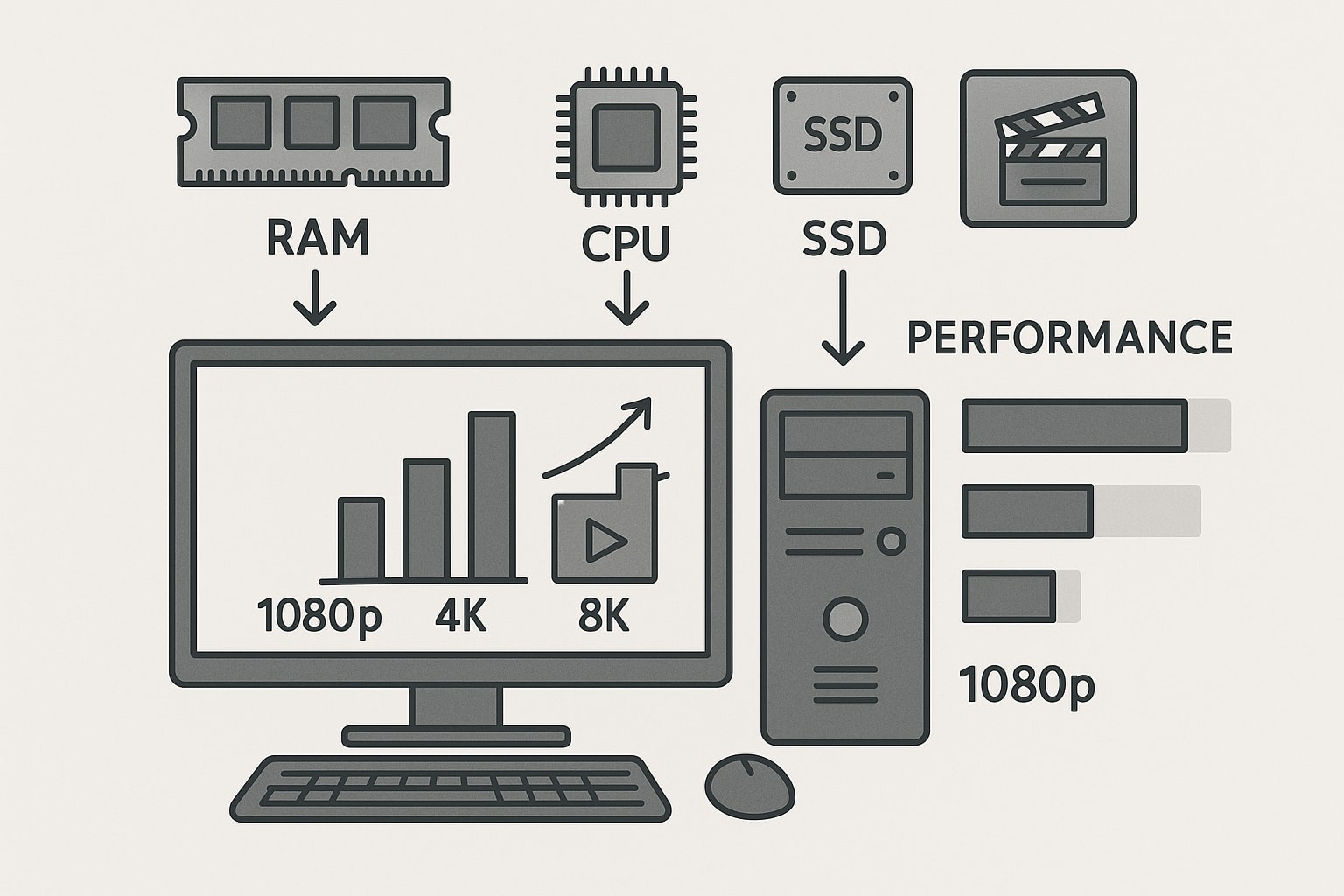
Memory Requirements for Popular Editing Software
Different editing applications have their own memory requirements. Most publish a minimum value that allows the programme to launch, plus a higher level recommended for serious work. In practice, those minimums are often suitable only for short, simple projects. For example, 8 GB of RAM might let you open an editor and trim basic HD clips, but you will soon encounter slowdowns once timelines grow or you introduce colour correction, transitions and layered audio.
For smooth Full HD video editing in tools such as Adobe Premiere Pro or DaVinci Resolve, 16 GB is widely seen as the realistic floor rather than a comfortable level. It allows a couple of video streams and some effects, but you may still feel constrained if you keep another application open alongside your editor. For professional work, 32 GB is often the recommended starting point. It supports richer timelines, background rendering and the common habit of keeping Photoshop, After Effects or audio tools open next to the main editing software. Resolve in particular can benefit from 32 GB or 64 GB when you add Fusion effects, heavy grading or high-resolution files.
Some platforms handle memory differently. Newer Apple systems use unified memory that is shared between CPU and GPU tasks, while Windows workstations pair discrete RAM with separate graphics memory. The underlying principle is similar: editing software will use every gigabyte it can reach. Planning for the upper end of the published recommendations gives headroom for plug-ins, updates and larger formats that appear over time.
Choosing between 16 GB, 32 GB and 64 GB RAM
Choosing between 16 GB, 32 GB and 64 GB RAM means matching capacity to your projects and ambitions. For hobbyists or those producing short HD videos with limited effects, 16 GB can be workable, particularly on a tight budget. It allows you to learn your software and complete modest projects, although you may need to close other applications and accept slower renders once timelines become denser.
For most editors who are paid for their work, 32 GB strikes a much better balance. It handles longer Full HD projects, regular 4K editing and a mix of tools without constant swapping to disk. You can keep reference material, browsers and image editors open, and still scrub the timeline with confidence. Many Ginger6 customers who began with 16 GB soon move to 32 GB once workloads grow, which is why the team often recommends planning for this level from the start wherever possible.
A move to 64 GB makes sense for editors dealing with multi-cam 4K projects, higher resolutions, complex motion graphics or heavy plug-in use. It is also suitable for studios who want a single workstation to manage editing, grading and effects without constantly closing applications. Investing in this level of RAM can delay future upgrades and keep performance consistent as software updates raise memory requirements. When Ginger6 designs a system, the team also considers motherboard slot count, so that increasing RAM is straightforward if your projects become more demanding.
Planning RAM for Your Custom Ginger6 Editing PC
A well-planned Ginger6 system treats RAM as part of a balanced package that includes processor, storage and graphics. Extra memory will not feel effective if the CPU is too weak or if a slow hard drive is forced to handle constant swap traffic. During a consultation, the Ginger6 team will ask about your editing software, typical resolutions, use of effects, and whether you run other tools such as Photoshop or After Effects alongside your main editor. That information shapes both the RAM recommendation and the rest of the specification.
For many editors, Ginger6 suggests a modern multi-core AMD Ryzen or Intel Core processor paired with 32 GB or 64 GB of high-quality RAM. Fast PCIe NVMe SSDs serve as system and project drives, which reduces the impact when footage moves between RAM and storage. If you handle very large timelines or want to experiment with Fusion or serious colour work, the planning process may favour 64 GB from the start, with spare slots kept free for future expansion. The aim is to create a machine that feels smooth today and has a clear upgrade path, rather than a specification that hits its limits within a year.
Every custom PC is assembled from quality components and tested for at least 24 hours under sustained load. That testing includes heavy use of RAM and storage, mimicking the pressure of real editing sessions. Components that show unstable behaviour are replaced before shipping, so your new workstation reaches you ready for project work, not troubleshooting.
When to Upgrade RAM and How Ginger6 Can Help
Even a well-specified system can eventually need more memory as projects and software advance. Signs that you are ready for a RAM upgrade include frequent pauses during video playback, regular warnings about low memory, and exports that slow dramatically once timelines contain many layers or high-resolution clips. If you notice your editing software using swap space heavily despite a fast SSD, it is another hint that RAM capacity has become a limiting factor.
Before you replace computer parts, it helps to understand how your current motherboard is populated. Some systems use all available slots with smaller modules, while others leave room for easy expansion. Ginger6 can review your existing configuration and advise whether it is better to add extra sticks alongside your current modules or to move to a new matched set with higher capacity. The goal is a stable, responsive system rather than one that mixes incompatible memory types.
If you are unsure where to start regarding your computer, you can share your typical project sizes, preferred editing software and current hardware with Ginger6. The team will recommend a practical RAM configuration for your custom editing workstation. RAM target, along with any computer processor or storage changes that would help your editing projects feel smoother. Whether you are planning a fresh custom-build or upgrading a trusted workstation, the right recommended RAM amount for video editing will keep your creative process running at a comfortable pace and give you confidence when you accept larger or more complex projects.