



How RAM Affects Design Software Performance
Smooth, responsive tools make a huge difference to any creative workflow. Lag, stuttering brushes and slow file loads quickly break concentration. One of the biggest influences on how your design software behaves is RAM. Understanding how RAM affects design software performance helps you choose the right specification, plan memory upgrades and get the best from a custom Graphic Design PC.
Ginger6 has spent years building systems for graphic design, illustration, video work and 3D, so our team sees every day how system memory, RAM speed and storage shape real-world design performance.
What Ram Does in Design Software
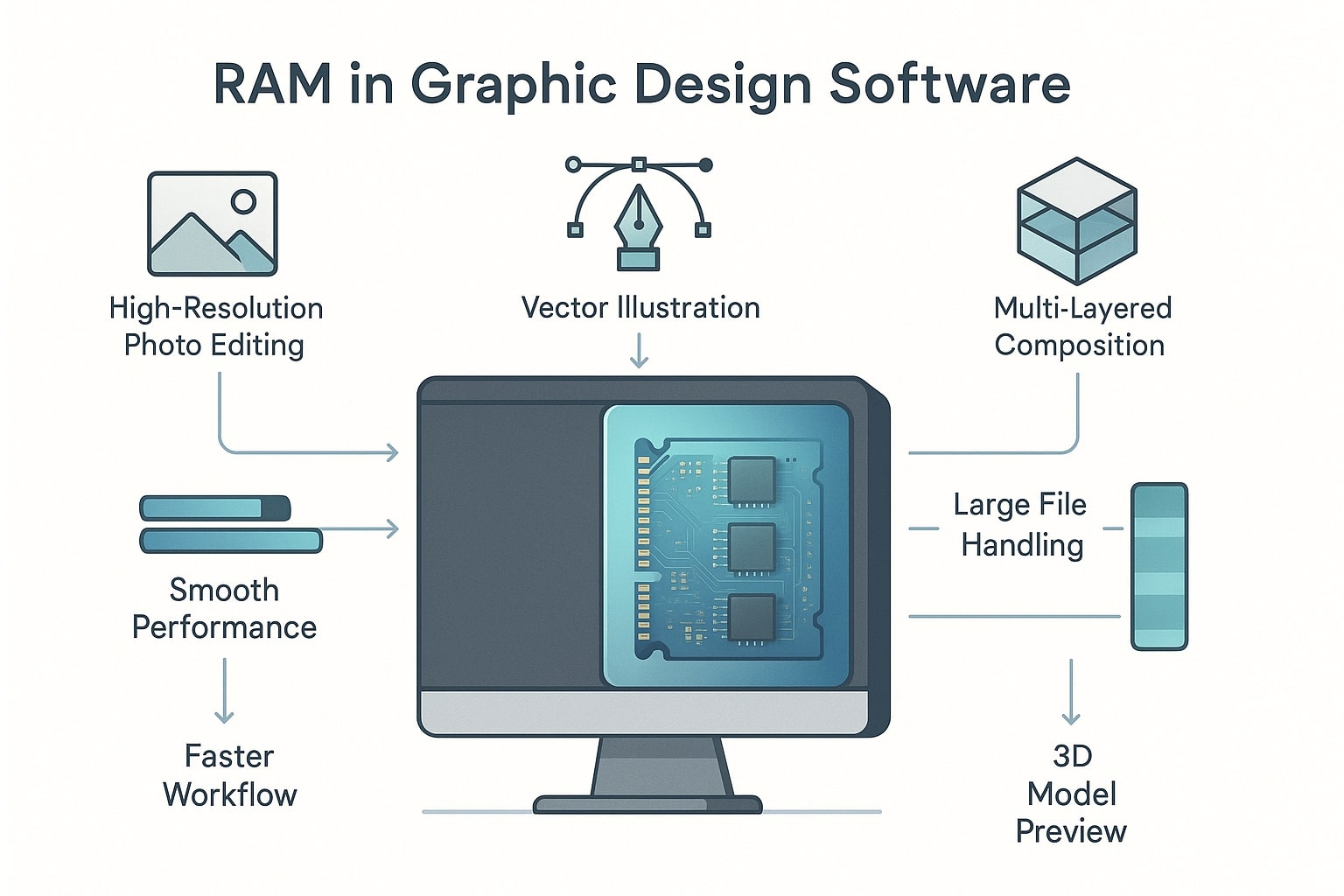
RAM is short-term working space for your computer. When you open Photoshop, Illustrator, InDesign or a 3D tool, the application loads into RAM along with the documents, fonts, textures and previews you are using. The more system memory you have, the more of that data can be kept in fast access.
For design workloads, RAM is heavily involved in:
-
Holding large layered PSD files and complex vectors
-
Managing undo history and snapshots
-
Caching previews and thumbnails
-
Keeping several applications open at the same time
When RAM capacity is too low, the operating system starts using drive space as overflow. This is much slower than RAM. You will notice:
-
Longer load and save times
-
Jerky zoom and pan in large documents
-
Delays when switching between projects or programmes
-
Occasional freezing while the system clears and refills memory
Good RAM usage is about keeping active work in memory and avoiding constant shuffling between RAM and disk. That is why RAM has such a direct impact on design performance, especially once projects increase in size or you run several tools at once.
Ram Specifications and Their Impact on Design Performance
RAM is not only about how many gigabytes are installed. The RAM specifications printed on a module influence the feel of your system just as much as the headline capacity, and both need to suit the way you work in design software.
Memory capacity determines how many assets, documents and applications you can keep active at once. Higher RAM capacity lets you work on larger images and longer documents, keep several project files open side by side, run multiple design applications without constantly closing and reopening them, and still maintain browser tabs, email and reference material in the background. If your typical day includes a 3 GB PSD, an InDesign layout, Illustrator artwork, a browser and communication tools, 8 GB or 16 GB will quickly feel restrictive. Professional design workloads usually benefit from starting with a higher amount of memory so the system is not pushed to its limits all the time.
RAM speed, often written as a frequency such as 3200 MHz, and overall memory speed affect how quickly data can move between RAM and the processor. Faster RAM gives you quicker access to textures, fonts and assets, makes brush strokes and filters feel more responsive, and helps video and motion timelines play back more smoothly. Slow memory can hold back an otherwise strong processor. In a balanced build, RAM speed complements CPU performance so you see consistent behaviour across layout work, photo editing and 3D rendering instead of mixed results.
Good design performance depends on matching CPU cores and clock speed with appropriate RAM size and RAM speed, and pairing both with suitable storage type and layout. Ginger6 selects and stress-tests memory so that system memory, storage and processor work together, rather than leaving you with an impressive specification in only one area and noticeable lag in everyday tasks.
Choosing the Right Ram Size for Different Design Workflows
The right RAM size depends on the type of projects you handle and how heavily you multitask.
Light and Mid-level Graphic Design
For general graphic design work such as logos, marketing materials, social graphics and modest photo edits:
-
16 GB RAM is an absolute minimum for a pleasant experience.
-
32 GB RAM provides space for multiple Adobe apps, plenty of browser tabs and a few large files without obvious slowdowns.
Designers at this level benefit from higher memory speed, but capacity is usually the bigger factor.
Heavy Image Work, Illustration and Mixed Media
If you retouch high-resolution photos, build dense illustrations or mix raster and vector artwork in large layouts:
-
32 GB becomes a sensible baseline.
-
64 GB RAM gives freedom to open huge files, maintain long undo histories and work with several complex documents at once.
Here, both RAM capacity and RAM speed matter, since you will often reach into memory for large textures, brushes and smart objects.
3D, Animation and Video
Motion graphics, 3D modelling and video editing have higher RAM requirements again. Long timelines, particle systems and large caches all consume system memory. For this type of workload:
-
64 GB RAM is a realistic starting point.
-
128 GB is appropriate for studios working with 4K or higher video, complex scenes or several heavy tools running together.
If your projects are moving in this direction, it is sensible to choose a motherboard that supports future memory upgrades and higher capacities. Ginger6 planners look at both current work and where you expect your workflow to be in a few years.
Not sure how much RAM your next system needs? Share your main design tools and typical file sizes with Ginger6 and we will suggest sensible memory options for your workload.
Memory Upgrades and Optimising System Memory in Custom PCs
A thoughtful memory upgrade can transform the feel of an existing PC. It is often one of the most noticeable improvements you can make to design software performance.
Signs You Need More Ram
You may benefit from extra RAM if you:
-
Regularly see warnings about low memory in your design tools
-
Experience long pauses when switching between applications
-
Notice that simple actions, such as dragging layers or scrubbing a timeline, feel slow while many programmes are open
-
Depend heavily on scratch disks because system memory is full
These symptoms suggest current RAM usage is hitting capacity and the system is offloading work to slower storage.
Planning a Memory Upgrade
When planning a memory upgrade, look at:
-
How many RAM slots are available
-
The maximum supported memory capacity for your motherboard
-
Current RAM speed and configuration
Often the best approach is to move to a higher matched set of modules rather than mixing old and new types. For example, replacing 2 x 8 GB with 2 x 16 GB or 4 x 16 GB, depending on slots and requirements.
Ginger6 checks compatibility, configures timings and tests stability so that upgraded RAM works reliably under pressure. That matters when projects involve large renders or tight deadlines.
Optimising Ram Usage in Daily Work
Hardware is only part of the picture. A few habits help you get full value from your memory:
-
Close unused programmes and large browser sessions while working on demanding projects.
-
Keep plenty of free space on your fastest SSDs so that any overflow from RAM is handled as quickly as possible.
-
Periodically check Adobe preferences for memory and cache settings that match your installed system memory.
Combined with suitable RAM specifications, these habits help your design software stay responsive from morning to evening.
If you are wondering whether to put budget into extra RAM, a new processor or faster storage, ask Ginger6 for a balanced upgrade plan tailored to your current PC.
How Ginger6 Systems Support Strong RAM Performance
Custom PCs from Ginger6 are built specifically for creative professionals, so how RAM affects design software performance is part of the conversation from the very beginning. Memory is treated as a core part of the specification rather than an afterthought.
When you contact Ginger6, the team will ask about your primary design applications, the typical and maximum sizes of your projects, how many monitors you use and at what resolution, and how you expect your workload to grow over the next few years. Using that information, they recommend RAM specifications that match your needs rather than a generic setup. For some designers this might mean 32 GB of high speed memory for busy graphic design work, while studios that combine 2D, video and 3D projects are more likely to be guided towards 64 GB or more.
Every system uses quality memory from trusted brands and is subjected to extended stress testing. This process simulates heavy design workloads so the team can check that the machine behaves reliably under high RAM usage, that memory, CPU and storage interact correctly, and that performance remains consistent during long sessions. Any component that shows instability is replaced before the PC leaves the workshop, so the finished system feels responsive day after day, even with demanding Adobe and 3D suites open.
As software evolves, RAM requirements change too. New features, higher resolution assets and updated engines often call for additional memory compared with earlier versions. With Ginger6 you have lifetime UK support, so you can ask for advice when planning a memory upgrade or adjusting settings for new tools. If you are ready to build or upgrade a system that keeps pace with your design ambitions, you can contact Ginger6 to discuss RAM size, RAM speed and complete specifications for a custom PC that supports smooth, confident design software performance.