




How to Avoid Lag in Design Tools
Lag in design tools disrupts creative flow and slows project delivery. Whether you are building complex layouts in Adobe InDesign or nudging pixels in Photoshop, you expect a Graphic Design PC to respond instantly. Understanding how to avoid lag in design tools means looking at both hardware and software so your applications stay smooth when deadlines are tight.
Designers often search for solutions when slow performance appears, typing phrases such as how to avoid lag in design tools into search engines after yet another stalled export. This page brings together practical hardware advice, in-tool settings, and workflow habits, backed by Ginger6’s experience building custom systems for creative professionals over 22 years.
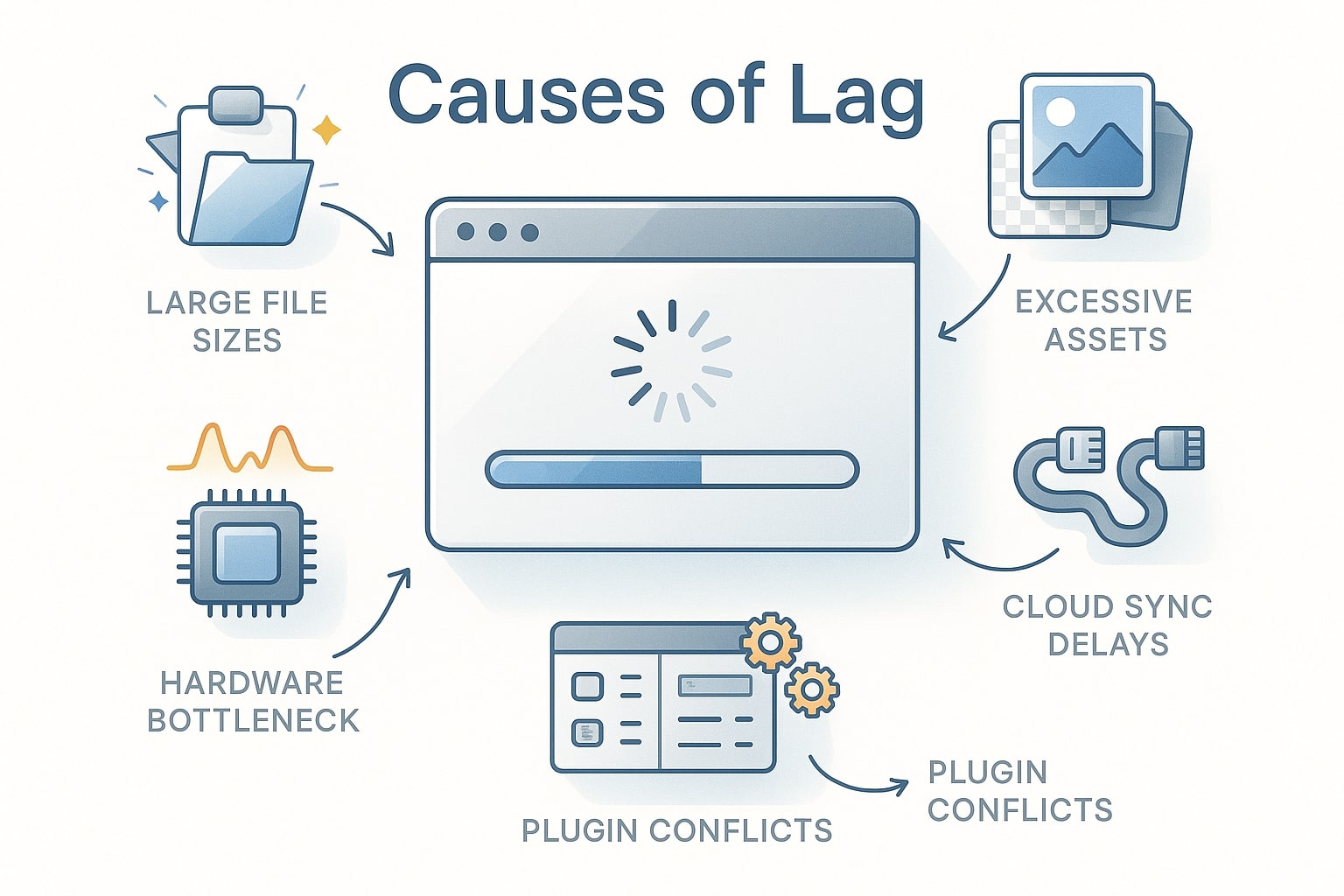
Why Design Tools Lag on Modern PCs
Modern design software is demanding. As files grow and features expand, even a relatively new PC can start to feel sluggish.
Common causes of lag include:
-
Insufficient RAM for large images, fonts and layout files
-
A processor that cannot keep up with constant previews and background processes
-
Slow storage, especially if your system drive is still a mechanical hard drive
-
Underpowered or misconfigured graphics hardware
-
Application preferences that are left at defaults instead of tuned for large projects
Design tools such as Adobe InDesign, Photoshop and Illustrator must juggle text, vector art, linked images and fonts. When system resources are limited, you see slow scrolling, delayed zooming, jerky panning and long save times. This is especially noticeable in documents with many pages, high-resolution photos or complex vector work.
Performance is also affected by how components work together. A strong CPU paired with very little RAM or a slow drive will still feel poor. Matching processor, memory, storage and graphics to each other, and to the tools you use, is a core part of avoiding lag.
Choose Hardware That Prevents Slow Performance
Hardware choices have a direct impact on application performance, particularly for Adobe InDesign and other layout tools.
Processor, Ram and Storage
For responsive design work, aim for:
-
Processor: A recent AMD Ryzen or Intel Core processor with enough cores for multitasking and threaded tasks such as exports and renders.
-
RAM: 32 GB as a sensible starting point for professional work, rising to 64 GB or more for large documents, extensive image libraries or mixed 2D and 3D projects.
-
Storage: Fast PCIe NVMe SSDs for the operating system and active projects, supported by extra SSDs or HDDs for archives and backup. Slow drives are a frequent cause of lag when saving or opening files.
Even though InDesign has historically been more CPU-focused, GPU performance matters too. Newer versions make increasing use of graphics acceleration for smooth zooming, panning and previewing, so pairing a capable NVIDIA RTX card with enough RAM and a fast SSD removes several common bottlenecks.
Example Spec Levels
| Usage level | Processor | RAM | Graphics | Storage layout |
|---|---|---|---|---|
| 2D design and layout | 6–8 core Ryzen / Intel | 32 GB | Mid-range RTX | 1 TB NVMe system + 1 TB SSD projects |
| Mixed design and motion | 12–16 core Ryzen / Intel | 64 GB | Higher tier RTX | 1 TB NVMe system + 2 TB NVMe projects + 4 TB archive |
| Heavy video / 3D work | High core count CPU | 128 GB | Powerful RTX suitable for GPU rendering | Dual NVMe for system and working files plus additional SSD/HDD pools |
These levels can be adjusted, but they illustrate how balanced hardware avoids lag, rather than pouring the entire budget into a single component.
Why Choose a Professionally Built Custom PC
A custom PC from Ginger6 is assembled using quality parts chosen for creative workloads, not only games, and is checked with over 24 hours of stress-testing. This regime exposes weak components and compatibility problems before you ever install your design tools, which greatly reduces the chance of random freezes, or mysterious crashes during exports.
If you are unsure which specification fits your mix of software, the Ginger6 team can assess your current system requirements and recommend configurations that remove existing bottlenecks while leaving room for future growth.
Not sure whether to upgrade part of your PC or move to a new system? Talk to Ginger6 about your current setup and the design tools that lag most often.
Optimise Adobe Indesign and Other Design Tools
With solid hardware in place, tuning Adobe InDesign and similar programmes can significantly improve responsiveness.
Adjust Display and View Settings
Large images and complex vector art are a common source of slow performance. In InDesign:
-
Set Display Performance to Typical or Fast during layout work and only switch to High Quality when checking final visuals.
-
Reduce the size and detail of thumbnails in the Pages panel so InDesign spends less time updating previews for each spread.
-
Where possible, link images rather than embedding them so the application only loads what it needs.
Similar ideas apply in other tools. For example, in Photoshop you can lower the preview quality of large smart objects while editing, and in Illustrator you can work in outline view when arranging complex artwork.
Review Preferences and Plug-Ins
Over time, default preferences and unnecessary plug-ins can slow an application:
-
Shorten autosave intervals only if you experience frequent crashes. Very frequent autosaves can interrupt work, particularly on very large documents.
-
Remove or disable plug-ins you no longer use, especially if they load at startup.
-
Clear temporary files and caches periodically to avoid bloated folders that slow file operations.
InDesign also includes features such as Preflight and live spell checking. These can be helpful quality controls, yet running them constantly in the background on large documents may contribute to lag. Use them strategically, for example before exporting, rather than all day.
Keep to the Latest Stable Version
Design software is updated frequently. New latest versions often include performance improvements, bug fixes and better GPU handling. Staying reasonably current reduces the risk of known lag issues that have already been resolved. Before major updates, review change notes and back up your work, then test new versions on a copy of a project to confirm that application performance is genuinely better on your system.
The wider Adobe community is a useful place to see which versions are behaving well for similar workloads and where other designers have found workarounds for specific slowdowns.
Workflow Habits That Support Smooth Application Performance
Even the best hardware and software settings can be undermined by everyday habits. A few simple practices keep your system feeling responsive.
Trim Background Activity
Running many programmes at once consumes RAM and CPU time. A typical day might involve:
-
A browser with many tabs open for reference
-
Email and messaging tools
-
Word processors or spreadsheets
-
Multiple design applications
Close applications you are not actively using, and consider dedicating one machine or user profile to design work where possible. This keeps resources focused on your primary tools.
Manage Files and Assets Sensibly
Good file management helps both performance and organisation:
-
Archive old projects to slower storage instead of leaving everything on your fastest SSD.
-
Keep fonts under control by removing families you no longer need or moving them from active lists to archives.
-
Use sensible naming and folder structures so assets are easy to locate and links do not break, which reduces the time spent relinking missing images.
Version control is another factor. Saving versions at milestones instead of keeping countless nearly identical copies keeps directories lean and makes backup strategies easier to manage.
Schedule Maintenance
Regular maintenance supports stable application performance:
-
Install operating system and driver updates during planned breaks, not in the middle of major projects.
-
Run malware scans and disk checks occasionally to ensure no underlying issues are competing for resources.
-
Keep plenty of free space on your main SSD, as very full drives are more likely to slow down under heavy load.
Combine these habits with tuned hardware and software preferences and you have a practical foundation for avoiding lag in design tools over the long term.
How Ginger6 Helps You Avoid Lag in Design Tools
Avoiding lag is not only about raw speed. Reliability, careful part selection and knowledgeable support make a real difference when your income relies on creative tools running smoothly.
Ginger6 builds custom systems specifically for designers and other creative professionals, using components selected for consistent application performance and then stress-testing each build for more than 24 hours. This process exposes weak components and ensures that your PC can handle sustained loads similar to complex InDesign layouts, large Photoshop files or 3D renders.
Once your system is in place, lifetime UK support means you always have someone to speak to if new lag issues appear after a software update or a change in workflow. The team understands how colour accuracy, storage layouts, GPU acceleration and network speeds all influence design tools, so advice goes far beyond general troubleshooting.
If you frequently run into slow performance, or unexplained delays while switching between programmes, it may be time to review both hardware and settings with an expert eye. Share your current specification, main design tools and typical project sizes with Ginger6, and the team will recommend systems and settings that help you avoid lag in design tools and keep your creative work moving smoothly.