




Intel Gaming Computer Performance Drops After Update
Noticing performance drops on an Intel Gaming Computer after an update can be frustrating, especially when games previously ran smoothly. These slowdowns often appear as lower frame rates, stuttering, longer load times, or inconsistent responsiveness during gameplay. Updates are meant to improve stability or security, but they can also disrupt finely balanced system configurations. When Intel gaming computer performance drops after update, understanding why these changes occur helps reduce guesswork. Performance changes are rarely random. They usually relate to how software updates interact with existing drivers, firmware, and hardware settings. By approaching the issue methodically, it becomes easier to identify the cause and restore stable gaming performance.
Why Intel PC Performance Drops After System or Software Updates
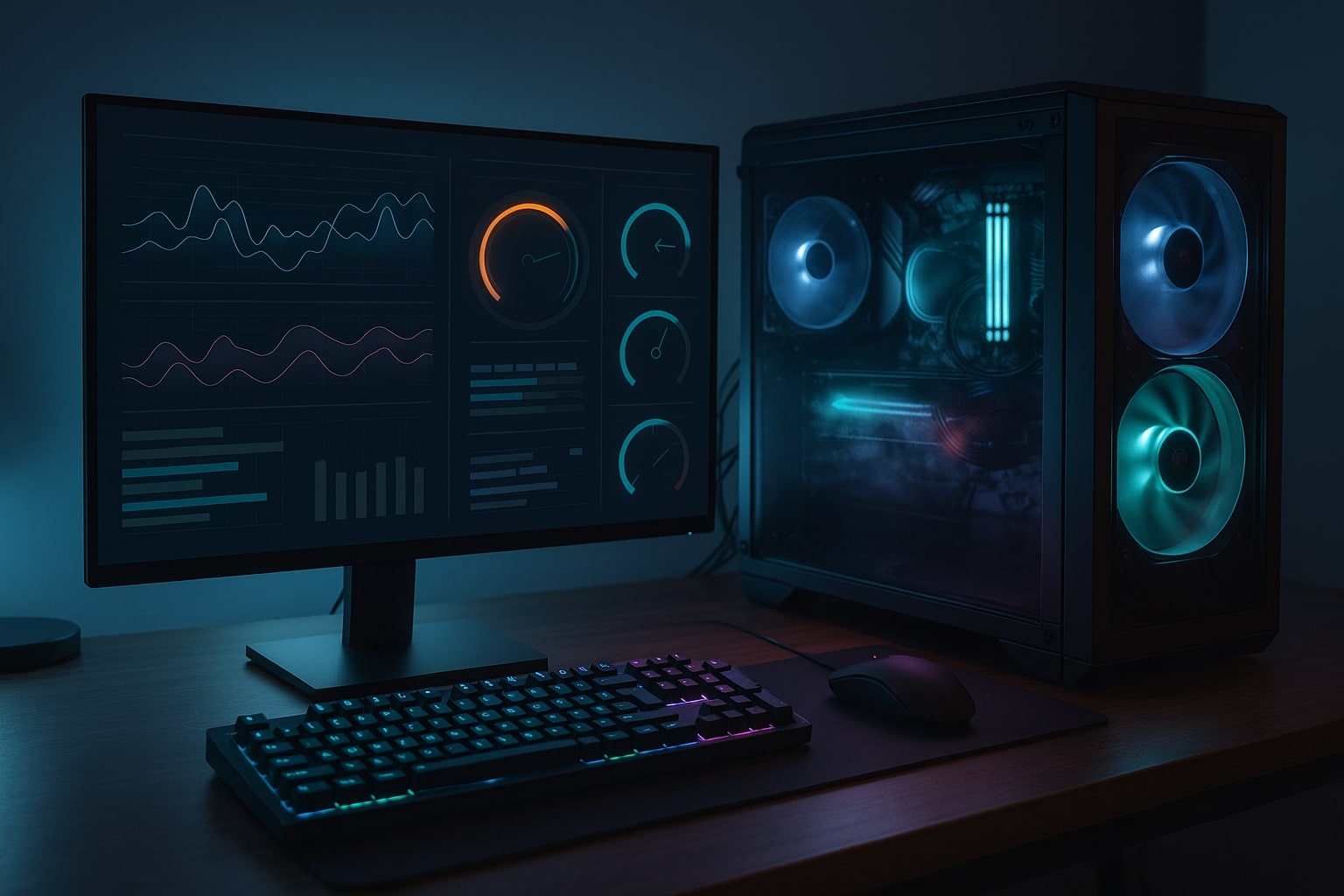
Updates change how a system behaves. Whether the update affects the operating system, graphics driver, chipset software, or firmware, it can alter resource management in subtle ways. Even small changes can affect how games use the CPU, GPU, memory, and storage.
One frequent cause is driver conflict. A new graphics driver or Intel update may not interact cleanly with existing software, leading to inefficient scheduling or incorrect power management. In some cases, updates reset performance-related settings, such as power plans or graphics profiles, without obvious warning.
Firmware and BIOS updates can also influence performance. Changes to CPU boost behaviour, core ratios, or voltage handling may reduce clock speeds under load. While these updates often aim to improve compatibility or stability, they can unintentionally lower gaming performance if previous settings are not restored.
Background processes introduced or modified by updates may also consume system resources. Security patches, indexing services, or telemetry changes can increase CPU or storage usage during gameplay, contributing to performance drops.
Common Signs of Post-Update Intel Performance Issues
Performance drops after an update often follow clear patterns. Recognising these signs helps narrow down the cause more quickly.
Typical symptoms include:
-
Lower FPS compared to pre-update performance
-
Sudden stuttering during scenes that were previously smooth
-
Longer loading times or texture pop-in
-
Inconsistent frame pacing during extended play sessions
-
Higher CPU or GPU temperatures under similar workloads
Low FPS is one of the most noticeable indicators. Games that previously ran at stable frame rates may struggle to maintain consistency after an update. This can happen even if average FPS appears acceptable, as frame delivery becomes uneven.
Another sign is unusual hardware behaviour. CPU clock speeds may fail to reach expected levels, or GPU utilisation may fluctuate unexpectedly. These changes often point to driver, firmware, or power management adjustments made during the update.
Peripheral issues can also appear. Input lag, audio stutter, or delayed responses sometimes accompany performance drops, especially when background services compete for system resources.
Diagnosing Performance Drops on Intel Gaming PCs
Effective diagnosis starts with identifying what changed. Reviewing recent updates and monitoring performance helps establish a timeline and reduces unnecessary troubleshooting .
Start with these checks:
-
Identify which update occurred before the performance drop
-
Review graphics driver version and release notes
-
Check Intel chipset or system updates
-
Confirm BIOS or firmware version changes
Monitoring tools provide valuable insight during diagnosis. Observing CPU utilisation, GPU load, clock speeds, and temperatures during gameplay highlights whether the system is throttling or misallocating resources.
If GPU usage is low while FPS drops occur, the bottleneck may lie with the CPU, drivers, or background processes. If GPU usage is high but performance is still poor, graphics settings or driver issues may be responsible.
Rolling back recent updates is often a useful test. Reverting to a previously stable graphics driver or system update can confirm whether the update introduced the issue. This process should be done carefully, with settings documented beforehand.
Firmware-related performance drops require additional caution. Reviewing motherboard update notes helps determine whether changes affect CPU performance or memory behaviour. Restoring previous BIOS settings after an update is often necessary to regain expected results.
Practical Steps to Restore Consistent Gaming Performance
Restoring performance works best when approached step by step. Avoid changing multiple variables at once, as this makes it harder to identify what actually improves results.
Useful recovery steps include:
-
Reinstalling or rolling back graphics drivers to a known stable version
-
Checking and restoring power plans and performance profiles
-
Reviewing in-game graphics settings for resets
-
Disabling unnecessary background applications
-
Monitoring temperatures to rule out thermal throttling
Testing after each change helps confirm progress. Use the same game, resolution, and scene when comparing results to maintain consistency, especially when building Intel gaming PC systems where configuration changes are common
Stress testing can reveal deeper issues. Running controlled CPU and GPU stress tests highlights instability that may not appear during short gaming sessions. Memory testing also helps identify errors introduced by firmware or driver changes.
If performance improves after reverting a specific update, delaying future updates until compatibility is confirmed may prevent repeat issues. Keeping a record of stable configurations makes future troubleshooting faster.
Get Help With Intel Gaming PC Performance Issues
When performance drops persist after updates and troubleshooting does not restore stability, experienced guidance can help prevent further frustration. Diagnosing interactions between updates, drivers, firmware, and hardware often requires hands-on knowledge of gaming system behaviour.
Ginger6 is a UK-based custom PC builder that provides aftercare support and technical guidance for gaming systems supplied by the company. Ginger6 can assist customers with reviewing system configurations, discussing performance changes after updates, and identifying whether drivers, firmware, or settings adjustments are likely to restore stability. For users seeking help with Intel gaming computer performance drops after an update, Ginger6 offers practical advice focused on maintaining reliable gaming performance over time.