



How to Set Up a Gaming PC: Your New Ginger6 PC, Step by Step
The short answer: take the glass side panel off, lift out the foam packing bag and the bag of accessories, and put the panel back. Plug the monitor into the graphics card, connect the Wi-Fi aerial, plug in the power and switch on. Windows is already installed, updated and activated, so all you do is follow its set-up screens. This guide is written by Ginger6, building gaming PCs by hand in Wolverhampton since 2001 and supporting owners across the UK.
Before you switch on: the packing inside the PC has to come out first. Do not power the PC up with the foam bag still in it. If anything looks wrong when you open the box, call Kevin on 01902 714533 before you go further.
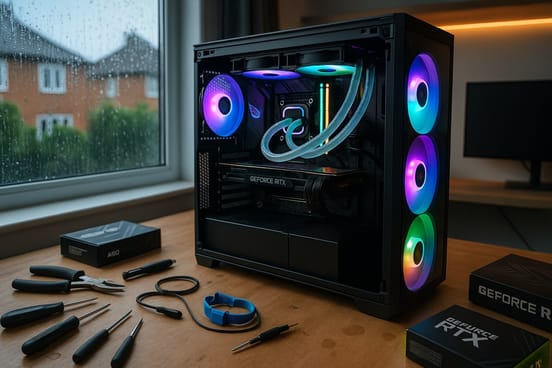
New PC Setup: What Is in the Box
Most of what you need travels inside the PC itself, so do not hunt through the box for the power lead. Open the PC first.
The Foam Packing Bag
Fitted inside the PC to hold the graphics card and the other parts still in transit. It comes out before the PC is switched on.
The Bag of Accessories
Packed inside the PC behind the foam bag. In it: the power lead, the Wi-Fi aerial, the Windows recovery USB stick, the Windows card, the Norton card, any spare leads from the power supply and the motherboard manual.
A Separate Box, Sometimes
If you ordered a keyboard and mouse, or there is too much to fit in the bag, everything comes in a separate box in place of the bag inside the PC.
Keep These Safe
The recovery USB stick, the Windows card and the motherboard manual are for later. Put them away together. Keep the box the PC came in as well.
Setting Up a New PC: Seven Steps in Order
All you need is a screwdriver for two screws. Take your time over the first four steps: they are the ones people ring us about.
What We Have Done Before It Reaches You
The USB stick in the bag makes some owners think Windows still has to be installed. It does not. Everything below is finished before the PC is packed.
Windows, Ready to Go
Windows is installed, updated and activated. The first time you switch on, a short set-up wizard asks you to choose your user name and agree to Microsoft’s terms. Then the PC is ready to use.
Drivers and BIOS Up to Date
The chipset and graphics drivers and the motherboard BIOS are updated. The memory profile is switched on and the fans are tuned.
Tested for 24 Hours
Every Ginger6 PC is stress-tested for 24 hours before it leaves the workshop, with the processor and the graphics card at 100% load at the same time.
One job is yours: Norton. 12 months of Norton 360 is included as standard with our PCs which come with Windows, unless you took it off when you ordered. We install Norton for you, and it still has to be activated, because we are not always able to do it for you. Open Norton and create an account, or sign in to one you already have. When it asks for an activation code, the code is inside the Norton card in the bag. Until it is activated, you do not have the 12 months of protection.
New Gaming PC Set Up and Something Is Not Right?
These are the four things owners ring us about on day one. Each has a quick answer.
Nothing on the Screen
Check the monitor cable is in the graphics card and the monitor is on the right input. Our guide to a PC which turns on with no display has the rest.
No Wi-Fi
The aerial is still in the bag. Connect it to the back of the PC and the networks appear.
The Side Panel
Glass side up, two screws on the back edge, slide back about an inch and lift. Leave the panel with the warranty stickers alone.
No Sign of Life
Check the switch on the back of the power supply is at I. Our guide to a PC not turning on has the full list.
Fitting your own parts later? Anything you add or change inside a Ginger6 PC affects the warranty. If you want to add or change a part, speak to us first on 01902 714533.
Not a Ginger6 PC? The same order works for any new gaming PC: take out any internal packaging, plug the monitor into the graphics card, connect the aerial and the power, then switch on. Your builder’s own instructions come first.
Help With Setting Up Your PC
Who to turn to depends on who built the PC.
- Lifetime technical support
- 3-year warranty, unlimited repairs
- Returned from anywhere in the UK
- Keep the box
- Bring it to WV10 9LE
- Set up and tested before you leave
- Drivers and settings checked
- Local customers only
- Keeping a PC dust free
- BIOS settings for gaming
- Common problems, first checks
- Free, for any PC
Common Questions About Setting Up a New PC
No. Windows is installed, updated and activated before the PC leaves us. The first time you switch on, a short set-up wizard asks you to choose your user name and agree to Microsoft's terms, and then the PC is ready to use. There is nothing to install.
It is a Windows recovery drive, for the day Windows ever needs reinstalling. You do not need it to set the PC up. Put it somewhere safe with the Windows card and the motherboard manual.
Lay the PC down with the glass panel facing the ceiling. On most cases there are two screws on the back edge of the glass panel. Undo them, slide the panel back about an inch and lift it off. Do it this way up and the panel is not able to drop and break. To refit it, do the same in reverse.
The panel opposite the glass, which hides the cables. It has warranty stickers on it and never needs to come off. Everything you need to reach is behind the glass panel.
Into the graphics card, which has its own row of sockets lower down the back of the PC. We put a sticker with arrows on the back to show you. If the screen stays blank, see our guide to a PC which turns on with no display.
Check the Wi-Fi aerial is connected on the back of the PC, in the block of sockets where the USB and network sockets are. It comes in the bag inside the PC and it is the part people most often forget. With the aerial on, choose your network in Windows and enter the Wi-Fi password.
12 months of Norton 360 is included as standard with our PCs which come with Windows, unless you removed it when you configured the PC. We install it for you, and it still has to be activated. Open Norton and create an account, or sign in to one you already have. When it asks for an activation code, the code is inside the Norton card in the bag. Without activation you do not have the 12 months of protection.
Yes. If your Ginger6 PC ever has to come back to the workshop, we take it back from anywhere in the UK, and the original box is the safest way for it to travel.
Check the switch on the back of the power supply is at I and the power lead is pushed fully in. Our guide to a PC not turning on has the full list of checks. If it is a Ginger6 PC, call Kevin on 01902 714533.
More Help With Your PC
Keeping a PC Dust Free
How to clean a gaming PC safely with one can of compressed air.
Read the GuideWant a PC Built for the Games You Play?
Tell Kevin your games, your monitor and your budget and he will build the PC to match. Every Ginger6 PC is hand-built in Wolverhampton, stress-tested for 24 hours and backed by a 3-year warranty. The person who sells it is the person who builds it.