



PC Turns On But No Display: What to Check First
The short answer: the fans spin, the lights come on and the monitor shows nothing or says no signal. Start outside the PC. Check the monitor cable is plugged into the graphics card and not the motherboard, check the monitor is on the right input, then try another cable and another screen. A flat screen TV will do. Listen as you switch on too: if the PC beeps, it is telling you something. This guide is written by Ginger6, building gaming PCs by hand in Wolverhampton since 2001 and supporting owners across the UK.
This guide is for any desktop PC, whoever built it. If your PC is one of ours, do the checks on the outside, listen for beeps and call Kevin on 01902 714533. Do not open the PC up. Lifetime technical support comes with every Ginger6 build.
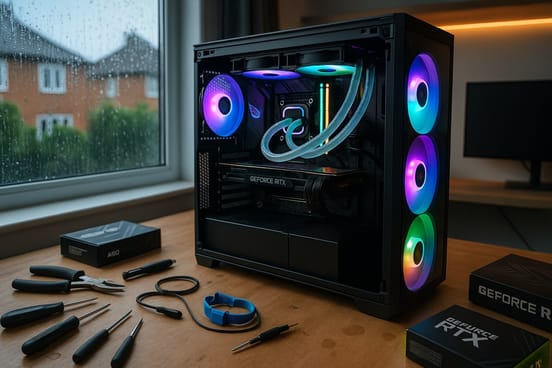
No Display on a New PC? Check Where the Cable Goes
It is the number one reason we hear from customers after a new gaming PC is delivered, even though we put a sticker with arrows on the back showing where the monitor connects.
Into the Graphics Card: Right
The graphics card has its own row of sockets lower down the back of the PC, usually HDMI and DisplayPort. The monitor cable goes in there. Every game then runs on the graphics card you paid for.
Into the Motherboard: Wrong
The sockets near the top of the back panel belong to the motherboard. Plug the monitor in there on a gaming PC and you get a weak picture from the built-in graphics, or no picture at all, depending on the processor.
If Ginger6 built your PC: look for the sticker with arrows on the back. If the cable is in the right socket and the screen is still blank, work through the checks below and call Kevin on 01902 714533.
PC Turns On But No Display: Seven Checks in Order
Every check is on the outside of the PC. Work down the list and switch the PC on again after each one.
Does the PC Beep When You Switch It On?
It is the first thing we ask on the phone. A PC with a blank screen often says what is wrong in another way.
Count the Beeps
A pattern of beeps is the motherboard reporting a fault it found while starting up. Count them and note whether they are long or short. The meaning varies by motherboard maker, so look the pattern up in the motherboard manual.
Look for a Warning Light
Many motherboards have a row of small diagnostic lights. A light which stays on marks the part the board has a problem with, and the manual says which light is which.
Silence Proves Nothing
Beeps need a small speaker on the motherboard, and not every PC has one fitted. No beeps does not mean no fault. We fit a system speaker to the PCs we build, so a Ginger6 PC should beep if it finds a fault as it starts.
PC No Display: What We Find Inside the Case
When the cable, the input and the screen are all ruled out, the cause is inside the PC. These are the ones we see.
Memory Not Seated Properly
The sign: a blank screen, often with beeps. A memory stick which is not fully home in its slot stops the PC from starting. The fix: the stick comes out and goes back in properly.
A Part Moved in Transit
The sign: the PC worked when it left the builder and shows nothing on arrival. The graphics card or its power cable is the usual one to shift. The fix: the part is seated again and tested.
A Faulty Graphics Card
The sign: every check passes and the screen is still blank. The fix: a test with a known good graphics card, which is how a workshop confirms it before anything is replaced.
A BIOS Setting
The sign: the picture went straight after a BIOS change. The fix: the BIOS goes back to its defaults. Our BIOS settings guide covers what to do when a change goes wrong.
Thinking of opening the PC yourself? Plenty of people seat memory and graphics cards themselves, and there are pitfalls. Switch off and unplug first. If you are not sure, take the PC to a repair shop. If it is under warranty, go back to the maker or the shop you bought it from before you touch it.
If Ginger6 built your PC: none of these is yours to fix. Anything you add or change inside a Ginger6 PC affects the warranty, so call Kevin on 01902 714533 first.
When the Checks Do Not Fix It
You have done the checks and the screen is still blank. What happens next depends on who built the PC.
- Lifetime technical support
- 3-year warranty, unlimited repairs
- Returned from anywhere in the UK
- Do not open it up or change parts
- Bring it to WV10 9LE
- Diagnosis before any work
- Memory, graphics cards and cables tested
- Local customers only
- Have the order number ready
- Tell them which checks you tried
- Tell them the beep pattern
- Keep the box
Common Questions About No Display
Start outside the PC. The usual causes are the monitor cable plugged into the motherboard in place of the graphics card, the monitor set to the wrong input, or a faulty cable. If those are all right, try another screen. Once the screen is ruled out, the cause is inside the case, most often memory not seated properly or a part which has moved in transit.
The graphics card. On a gaming PC it is the separate row of sockets lower down the back of the PC. The motherboard sockets near the top are for PCs with no graphics card. Plugged in there, you get a weak picture or none at all. It is the number one reason we hear from customers after a new gaming PC is delivered.
The monitor has power and is not receiving a picture from the PC. Check the monitor is set to the input the cable is plugged into, check both ends of the cable, and check the cable is in the graphics card. Then try another cable.
A pattern of beeps is the motherboard reporting a fault it found while starting up. Count the beeps and note whether they are long or short. The meaning varies by motherboard maker, so look the pattern up in the motherboard manual. If Ginger6 built your PC, tell Kevin the pattern when you ring.
Yes. A memory stick which is not fully home in its slot stops the PC from starting, and the screen stays blank. Often the PC beeps as well. The stick has to come out and go back in properly. On a Ginger6 PC, call us before you touch it.
Check the monitor cable is in the graphics card and the monitor is on the right input, then try another screen. If it still shows nothing, a part might have moved in transit. Do not open it up: ring whoever built it. If it is a Ginger6 PC, call Kevin on 01902 714533 and keep the box.
Yes. A flat screen TV with an HDMI socket is a good stand-in for a monitor. Plug the PC into it with an HDMI cable and choose the matching HDMI input on the TV. A picture on the TV means the PC is working and the monitor or its cable is at fault.
Put the BIOS back to its default settings. How you do it depends on the motherboard, and our guide to BIOS settings for gaming covers what to do when a change goes wrong. If Ginger6 built the PC, call us first.
More Help With Your PC
Want a PC Built for the Games You Play?
Tell Kevin your games, your monitor and your budget and he will build the PC to match. Every Ginger6 PC is hand-built in Wolverhampton, stress-tested for 24 hours and backed by a 3-year warranty. The person who sells it is the person who builds it.