



What Should I Upgrade on My PC? A Gaming PC Upgrade Guide
The short answer: for more frames per second in games, upgrade the graphics card. For stutter when a lot is open, upgrade the memory. For slow loading or a full drive, add an SSD. The processor comes last, because changing it often means a new motherboard and new memory as well. Before you buy any part, run the four checks below. This guide is written by Ginger6, building gaming PCs by hand in Wolverhampton since 2001.
This guide is for any gaming PC, whoever built it. If your PC is one of ours, anything you add or change affects the warranty, so call Kevin on 01902 714533 before you buy a part.
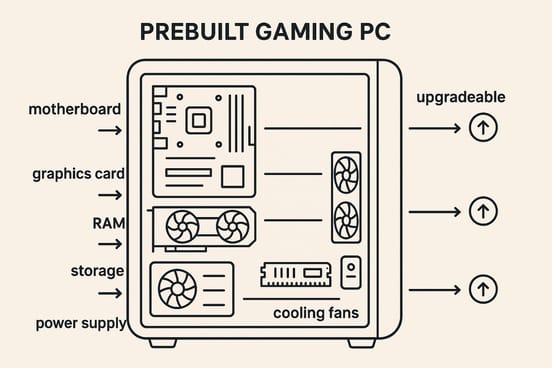
What to Upgrade First: Start With the Problem
The best PC upgrade for gaming depends on what the PC is doing wrong. Match the problem to the part, and you buy one part and not three.
Low Frame Rate in Games
Upgrade the graphics card (GPU). It does most of the work in a game, so it is the upgrade with the biggest impact on gaming performance. Games choppy from start to finish, at settings you do not want to lower, point here.
Stutter With a Lot Open
Upgrade the memory (RAM). The game runs well alone and hitches once a browser, a chat app and a launcher are open beside it. 16GB is enough for many people getting into gaming. 32GB is more than ample.
Slow Loading, or No Space Left
Add an SSD. A PC still running Windows or its games from a hard drive loads slowly no matter how good the other parts are. A full drive slows everything down as well. Storage is the simplest part to add.
Slow at Everything
Spend nothing yet. A PC slow on the desktop as well as in games usually has a software problem, and a new part will not cure it. Work through our slow PC checks first. They are free and take ten minutes.
If Ginger6 built your PC: call Kevin on 01902 714533 before you buy or fit anything. Adding or removing a part affects your warranty, and he will tell you whether the upgrade is worth the money.
If it is any other PC: the whole guide is for you. It covers what each upgrade does, what to check before you buy and who fits it.
Four Checks Before You Buy a Part
Most upgrades which go wrong do so because the new part does not suit the PC it is going into. These checks take a few minutes and none of them needs the case open.
Not sure what is inside your PC? Our slow PC guide shows how to check your specs in Windows without opening the case. If you would rather not work it out yourself, send Kevin the model of your PC and what you want from it.
Gaming PC Upgrades: What Each One Does
Six components people upgrade, in the order we would look at them. The parts diagram at the top of the page shows where each one sits. For each: what it changes, and what goes wrong when it is done without checking.
Graphics Card
What it changes: frame rate, and how high you set the resolution and detail. For gaming it is the best upgrade on most PCs. What goes wrong: a power supply too small for it, a case too short for it, or an older processor holding it back. Check all three before you order.
Memory (RAM)
What it changes: stutter and slow-downs with several programs open. It does little for a game already running well. What goes wrong: mixing sticks. Added memory has to match what is fitted in size, brand and specification. We see PCs with two 8GB sticks and two 16GB sticks added beside them, or two different brands, and they cause problems. See how much RAM a gaming PC needs.
Storage (SSD)
What it changes: start-up, loading screens and how many games you keep installed. It does not raise frame rate. What goes wrong: buying an M.2 drive for a motherboard with no free M.2 slot. Check the board first. A second drive for games is the usual choice, and it leaves Windows where it is.
Processor (CPU)
What it changes: frame rate in games leaning on the processor, and speed in editing or streaming. What goes wrong: a new processor has to fit the socket on your motherboard. A newer generation often needs a new board, and a new board often needs new memory. At this point you are rebuilding the PC, so price it against a new one.
Power Supply
What it changes: nothing you will see in a game. It is the part other upgrades depend on. What goes wrong: skipping it. Fit a bigger graphics card to a supply with too little wattage and the PC shuts down under load. If the new card asks for more than you have, the supply goes on the shopping list too.
Cooling and Fans
What it changes: noise, mostly. A better cooler does not add frames to a PC already running as it should. What goes wrong: buying one to cure a problem dust is causing. Clean the PC first with our cleaning guide. If you are fitting a much faster processor, check the cooler is rated for it.
Upgrading an AMD system? Our AMD upgrade guide covers the sockets and which Ryzen processors fit which boards. After any processor or memory change, the BIOS settings guide covers what to check.
Can You Upgrade a Prebuilt Gaming PC?
Yes, in most cases. How far you get depends on whether the PC was built from standard parts.
Built from standard parts
A prebuilt gaming PC from a specialist builder uses the same parts you would buy off the shelf: a standard motherboard, a standard power supply and a normal case. Every part in it comes out and a newer one goes in. Upgrading a prebuilt gaming computer of this kind is no different from upgrading a custom gaming PC.
Every Ginger6 PC is built this way, whether it is a prebuilt gaming PC ready built or one you configure yourself. If you know you will want more memory or a second drive later, tell us when you order and we will plan the build round it, so there is room for future upgrades.
Built from the maker’s own parts
Some big-brand desktops use a motherboard, power supply and case made only for the model. The power supply has its own connectors and its own shape. The case has no room for a longer graphics card. On these PCs memory and storage are usually the only parts worth changing, and the only two a beginner should attempt, and a graphics card upgrade ends up needing a new power supply, case and board as well.
Cheap prebuilt PCs save money in the same places: a small power supply and a basic case. Our guide on whether cheap prebuilt gaming PCs are worth it explains what to look for, and whether an affordable prebuilt overheats covers the cooling side.
Upgrades and Your Warranty
Warranty concerns are the reason to stop and ask before upgrading a prebuilt gaming PC. Every builder has its own rules. These are ours.
On a Ginger6 PC
Adding or removing a part, or tampering with a label, affects your 3-year warranty: you lose the collect and return part of it. If something you have done contributes to a fault, you may also lose the parts and labour cover for it, and we decide case by case.
If a part you fitted is causing the problem, we do not cover postage or our labour. If you damage something, the damaged part and our labour are not covered. The same applies to overclocking.
So speak to us first. Call Kevin on 01902 714533 and he will tell you where you stand before you spend anything.
On any other PC
Read the builder’s warranty terms, or ring them, before you take the side panel off. Ask three things: whether opening the case affects the cover, whether a part you add is your own responsibility, and what happens if a fault appears after the change.
Keep every part you take out. If the PC has to go back under warranty, most builders want it in the state they sold it in. Parts you buy yourself carry their own warranty with the shop you bought them from, separate from the warranty on the PC.
Upgrade It, or Buy a New One?
An upgrade is good value when one part is short. It is poor value when everything is.
Upgrade when one part is holding it back
A PC a few years old with a sound processor and a tired graphics card is the ideal case. One new card, checked against the power supply and the case, and it plays current games again. The same goes for a PC short of memory or still loading from a hard drive.
Do the upgrades in order: the part matching your problem first, then stop and play. Do not buy three parts at once to find out which one mattered.
Replace when the list keeps growing
If the new graphics card needs a new power supply, and the processor is too slow for it, and the new processor needs a new motherboard and memory, you are buying a new PC one part at a time and keeping the oldest bits. A gaming PC is a balance of parts, and one new part beside five old ones does not give you the performance you paid for. Price the whole list before you start.
For comparison, a new Ginger6 gaming PC starts from about £1150, and Kevin’s advice is to budget £1300 or more. It comes built, stress-tested for 24 hours and covered by one warranty. Prices are a guide: the live price is on each product page.
Who Fits the Upgrade?
How to upgrade your PC depends on who built it and where you are.
- Speak to us before you buy a part
- Changes affect the warranty
- Upgrades looked at during a repair
- Lifetime technical support
- Bring it to WV10 9LE
- Parts checked against your PC
- Fitted and tested
- Local customers only
- Hand-built in Wolverhampton
- Stress-tested for 24 hours
- 3-year warranty
- Free UK mainland delivery
Fitting the part yourself on a PC from another builder? Switch the PC off, disconnect it from the mains and work away from carpet. If it does not start afterwards, put the old part back before you change anything else.
Common Questions About Upgrading a PC
Match the part to the problem. For a low frame rate in games, upgrade the graphics card. For stutter with several programs open, upgrade the memory. For slow loading or a full drive, add an SSD. Leave the processor until last, because a new one often needs a new motherboard and new memory as well. If the PC is slow at everything, try the free software checks before you buy any part.
Yes, in most cases. A prebuilt gaming PC built from standard parts takes a new graphics card, memory, storage or power supply the same way a custom PC does. Some big-brand desktops use a motherboard, power supply and case made only for the model, and on those memory and storage are usually the only parts worth changing. Check the power supply wattage and the room in the case before you buy.
It depends on the builder, so ask before you open the case. On a Ginger6 PC, adding or removing a part affects the warranty: you lose the collect and return part of it, and if something you have done contributes to a fault you may lose the parts and labour cover for it as well, decided case by case. Speak to us first on 01902 714533.
Upgrade when one part is holding the PC back, such as an ageing graphics card beside a sound processor. Buy a new one when the list keeps growing: a graphics card needing a new power supply, plus a processor needing a new motherboard and memory, costs close to a new PC and leaves you with the oldest parts. Price the whole list before you start.
Read the wattage on the label of the power supply and compare it with the wattage the graphics card maker recommends for the card. The supply also needs the right power cable for the card. If the supply falls short on either, replace it at the same time as the card. A supply too small for the card shuts the PC down under load.
Only if the memory is filling up: stutter with several programs open is the sign. 16GB is enough for many people getting into gaming and 32GB, as two 16GB sticks, is more than ample. Added memory has to match what is already fitted in size, brand and specification. Mixing sticks causes problems, so replacing the set with one matched pair is often the safer route.
Any modern graphics card will work with any recent processor. The question is whether the processor is quick enough to feed it. Open Task Manager with a game running: if the processor sits near 100% and the graphics card is well below it, the processor is the limit and a faster card will not raise the frame rate.
If we built it, call Kevin on 01902 714533 before you buy anything. When a Ginger6 PC is back with us for a warranty repair, we will look at upgrades or changes you want while it is here. For PCs we did not build, we fit upgrades at our Wolverhampton workshop for local customers who bring the machine in. We do not take other makes by courier.
More Help With Your PC
How to Build a Gaming PC
The parts, the order they go in and what to do if it does not start.
Read the GuideAdding Bluetooth to a PC
How to add Bluetooth to a desktop PC, and the easy way to do it.
Read the GuideNot Sure What to Upgrade?
Tell Kevin what PC you have and what you want it to do better. He will tell you which upgrade is worth the money, and where a new PC is the better buy he will say so. The person who sells it is the person who builds it.